

TradingView AI Copilot: What It Can and Can't Tell You About Your Strategy
TradingView AI Copilot is a paid chart assistant that writes Pine Script and summarises backtests. Features, how to use it on a strategy, and its limits.
By Tessera Trades · Updated · 11 min read
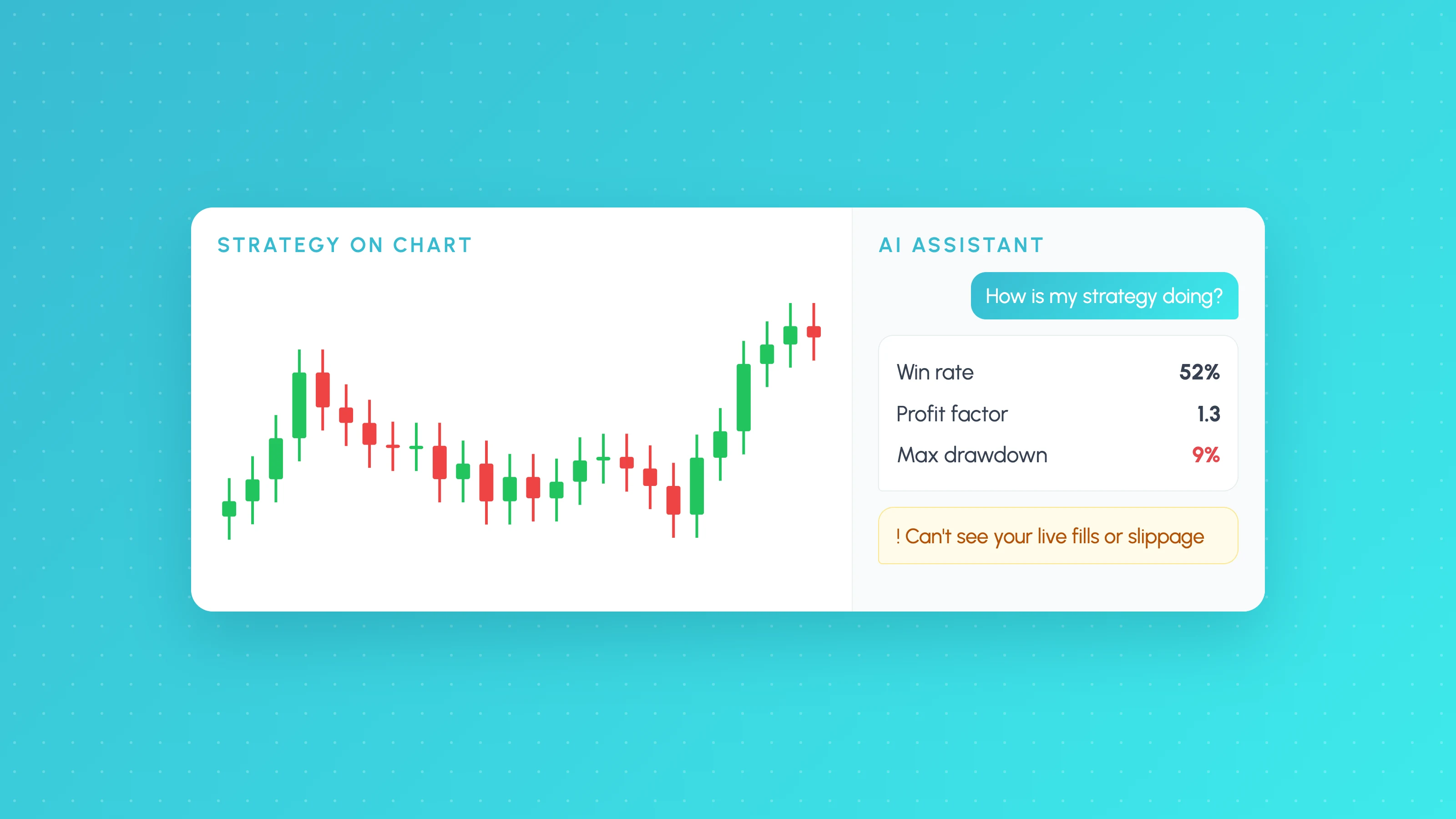
TradingView AI Copilot is an AI assistant built into the side panel of TradingView's charts that can set up and mark up charts, answer questions from TradingView data, write and apply Pine Script, and read a strategy's backtest report to explain numbers such as profit factor, max drawdown and win rate. It launched on 28 September 2026 as a paid monthly add-on for Essential, Plus, Premium and Ultimate plans, on web and desktop but not yet in the mobile apps.
For strategy traders, the useful question is narrower than "is it good?". Copilot can get a strategy onto your chart and give you a plain-language read of its report quickly. What it reports is the strategy's headline results. The questions that decide whether you should trade a strategy, such as where it loses, whether the edge survives costs and a period it never saw, and how live fills compare, still need work outside the chat. This guide covers what Copilot does, how to use it on a strategy, where its answers stop, and how it compares with connecting Claude through TradingView's MCP server.
What TradingView AI Copilot is
TradingView announced AI Copilot on its blog on 28 September 2026. It sits in the right-hand panel of Supercharts and in the desktop app, and according to TradingView's getting started guide it "sees what's on your chart" and works from TradingView data: quotes, indicators, financials, news, earnings, economic calendars and screener data.
The facts that matter before you pay, as of 2026-10:
| AI Copilot (as of 2026-10) | |
|---|---|
| Launched | 28 September 2026 (TradingView blog) |
| Plans | Separate add-on for Essential, Plus, Premium and Ultimate (help centre) |
| Billing | Renews monthly and can be cancelled any time (TradingView blog); cancel under Settings > Subscriptions > AI add-on (manage add-on) |
| Where | Web and desktop app. Not in the mobile apps yet (help centre) |
| Usage | Fixed monthly token allowance, the same on every plan, no top-ups (usage limit) |
| Price | Not listed on TradingView's blog, help pages or pricing page. Check the checkout in your account |
Two details from the usage page are worth knowing if you plan to use it for Pine Script. Pine Script requests run on higher-cost models and use the most tokens, along with "complex analytics". And when you hit the limit, new requests pause until the allowance resets; you can't buy more yet. Some accounts have been given a 30-day promotional trial, which TradingView assigns and which expires on its own.
Not the Chrome extension. In April 2026 TradingView released a free AI Chart Copilot browser extension in public beta. That post now says the extension "is no longer actively supported and will eventually be discontinued" and points users to the built-in Copilot. Reviews describing a free extension are describing that older beta, not the built-in add-on.
What it can do
TradingView's help centre lists these jobs:
- Chart setup: symbols, timeframes, indicators, layouts, visible range and theme.
- Chart markup: support and resistance, chart patterns and market structure.
- Research: technical analysis, fundamentals, news, sentiment and macro context, and plain-language screening.
- Trading plans: structured plans, including position sizing.
- Pine Script: writes indicators and strategies and applies them to the chart.
- Backtest review: reads a strategy's report and explains the results.
- Watchlists and alerts: creates and manages them.
The help centre is also clear about limits: it isn't financial advice, it "can be wrong or use outdated information", so verify important figures (help centre), it relies on the context it has (your messages and the active chart), and it handles one request at a time in a chat.
How to use Copilot on a strategy
TradingView's page on creating indicators and strategies with AI Copilot describes a three-part loop: write, optimise, review.
- Open the chart you'll trade. Set the symbol and timeframe first. Copilot works from the active chart, and the help centre recommends including the ticker and timeframe in your prompt.
- Describe the strategy precisely. TradingView's example is a long entry when the 20 EMA crosses above the 50 EMA, exiting on the opposite cross. Be specific about entries, exits, stops, timeframe and any inputs. Copilot writes the Pine Script, checks it for errors and applies it to the chart. If it fails to compile, ask Copilot to fix it; it can read the error itself.
- Set realistic properties before reading anything. Ask Copilot to add commission and slippage that match your broker, or set them yourself in the strategy's properties. Left at zero, they flatter any strategy that trades often. Our guide to why strategies work in backtest but not live covers the settings that matter.
- Ask for a backtest review. According to TradingView, Copilot reads the backtest report, explains profit factor, max drawdown, win rate and average trade, and then judges whether the strategy looks viable based on your prompt.
- Be careful with optimisation. The same help page says Copilot can test different parameter combinations and report which performed best. That's convenient, and it's also the fastest route to an overfit strategy: the best of many combinations on one stretch of history is partly the best fit to that history's noise. Keep a period the optimisation never saw, and see our overfitting checklist.
Useful prompts at the review stage are the ones that make it check rather than praise:
Review this strategy's backtest. How many trades is it based on?
What happens to profit factor if I double commission and slippage?
Which three trades contribute the most profit, and what is the
profit factor without them?
Whether Copilot can answer the second and third questions depends on what it can reach from the report on your chart. TradingView's documentation names the summary metrics and doesn't say how far it goes into the individual trades, so check its answers against the Strategy Tester's List of Trades.
What it can't tell you about your strategy
None of the following is a criticism of Copilot as a chart assistant. They are questions a chat over one backtest report isn't set up to answer, and TradingView's documentation doesn't describe Copilot doing them.
| Question | What Copilot is documented to do | What answering it actually needs |
|---|---|---|
| Is this strategy profitable overall? | Summarises profit factor, drawdown, win rate, average trade | Covered, with costs set correctly |
| Where does it lose money? | Not described | Every trade tagged by session, weekday, time of day, volatility and symbol, with results per slice |
| Is each slice big enough to act on? | Not described | Trade counts per slice, not just percentages |
| Does live trading match the backtest? | Not described | Your broker's fills lined up against the backtest's trades for the same period |
| Would a tighter stop or a session filter help? | Can rewrite the script and rerun the backtest | Testing the change on the same trades the strategy already took, then on unseen data |
| Is the edge real or fitted? | Can sweep parameters | Out-of-sample periods, nearby parameter values, sample size |
Breakdown by market condition
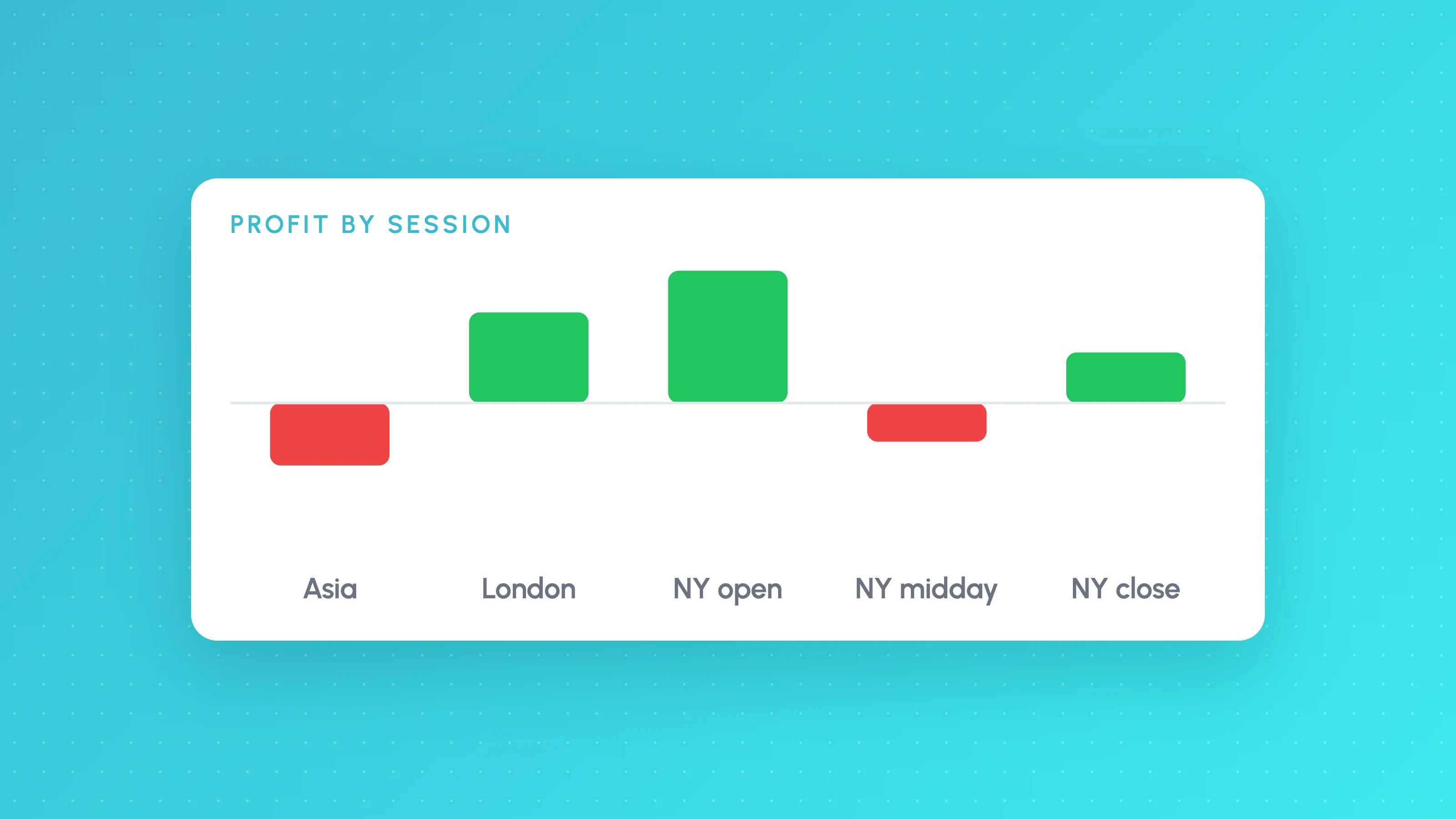
The single profit factor in a report is an average over every condition the strategy traded in. A strategy with a respectable overall number can be losing steadily in the Asian session and carried by London and New York, or making all its money on high-volatility days. You can't see that from the summary metrics TradingView says Copilot explains. You need each trade tagged with the conditions it happened in and summarised per bucket, with the trade count beside each result. How to analyse a TradingView backtest by session, weekday and hour shows how to do this in a spreadsheet from the List of Trades export.
Backtest vs live
Copilot reviews the backtest report on your chart. A strategy's real test is how its live or paper fills compare with that backtest over the same weeks: entries that slipped, exits that filled later, trades the backtest took that never triggered live. That comparison needs your broker's trade history next to the backtest, trade by trade.
Testing rule changes on the same trades
Copilot can edit a script and rerun it, which tells you how the modified strategy does on the same history. That's useful, but every rerun is another look at the same data. A cleaner first step for a stop, target or filter change is to apply it to the trades the strategy already took and see which ones it would have changed, then confirm the change on a period you didn't use to find it.
Where a dedicated analysis fits
This is the part Tessera is built for. You export the Strategy Tester's List of Trades, import it into Tessera, and the reports break the results down by session, weekday, time of day, volatility and symbol, with the trade count behind each slice. The simulator replays stop, target and filter changes on real candles against the trades the strategy took, and rules that hold up can be exported into a new copy of your Pine Script. Live trades can come in from broker sync (Liquid Brokers, Interactive Brokers, OANDA, cTrader and Binance) or file import, so you can compare them with the backtest.
Tessera's journal doesn't edit a Copilot strategy or generate new backtest fills for it; it analyses trades the strategy has already taken. (Tessera's Strategy Lab is a separate no-code backtester for strategies you build there.) In practice that makes it a second step after Copilot rather than a replacement: let Copilot get the strategy onto the chart and summarise it, then check where it makes and loses money.
Copilot vs connecting Claude through TradingView's MCP server
TradingView also runs an official MCP server that lets assistants such as Claude and ChatGPT reach your account from outside TradingView. Its documentation lists 35 tools across watchlists, market data, symbol search, screener, news, fundamentals, documents, calendars and alerts, included in Essential plans and above (not trials). It has no Pine Script or Strategy Tester tools.
| AI Copilot | Official MCP server with Claude | |
|---|---|---|
| Where it runs | Inside TradingView's chart panel | In Claude, ChatGPT or another MCP client |
| Plan | Paid add-on on a paid plan | Included in Essential and above |
| Sees your chart | Yes | No |
| Writes and applies Pine Script | Yes | No |
| Reads Strategy Tester results | Yes, summary metrics per TradingView | No |
| Research, screening, news, alerts | Yes | Yes |
| Combine with your other files and tools | Not described; works from your messages and the active chart | Yes, inside your AI assistant |
For strategy work on the chart, Copilot is the more direct tool. The MCP route suits research and monitoring workflows in an assistant you already use, and some traders write Pine Script in Claude and paste it into TradingView. Our guides cover connecting Claude to TradingView and the differences between the official and community TradingView MCP servers, including desktop bridges that can reach the Strategy Tester with unofficial methods and real caveats.
Is TradingView AI Copilot worth it?
It depends on what you'd use it for, and TradingView doesn't publish the price on its help pages, so check it at checkout. As of 2026-10, it's likely worth trying if you:
- spend a lot of time setting up charts, marking levels and pulling news or fundamentals into one view;
- want to turn a strategy idea into compiling Pine Script without learning the language;
- want a quick plain-language read of a Strategy Tester report.
It's less useful if you already write Pine Script comfortably, mostly trade from mobile, or expect it to tell you whether a strategy will make money. TradingView's own page says backtest results "describe the past and don't guarantee future performance". A Copilot-written strategy should go through the same checks as any AI-written strategy; how to test a strategy ChatGPT or Claude wrote has the full sequence.
Trading carries risk, and no AI assistant or analysis tool makes a strategy profitable.
If you've got a strategy on the chart already, export its List of Trades and upload it for a free Entry Analysis report to see its results by session, weekday, time and volatility. No card needed.
For how Copilot compares with other tools that turn plain English into a strategy, see the best AI trading strategy builders.
Frequently asked questions
- What is TradingView AI Copilot?
- It's an AI assistant built into TradingView's chart side panel, launched on 28 September 2026. It answers questions from TradingView data, sets up and marks up charts, manages watchlists and alerts, writes and applies Pine Script, and explains strategy backtest results. It's a paid monthly add-on for paid plans and isn't in the mobile apps yet.
- Can TradingView Copilot analyse my strategy backtest?
- Yes, at the summary level. TradingView says it reads the backtest report, explains profit factor, max drawdown, win rate and average trade, and gives a view on whether the strategy looks viable. It isn't documented to break results down by session, volatility or other conditions, or to compare a backtest with your live fills.
- Is TradingView AI Copilot free?
- No. It's a separate paid add-on on top of an Essential, Plus, Premium or Ultimate plan, renewing monthly. Some accounts have received a 30-day promotional trial assigned by TradingView. The older free browser extension is no longer actively supported.
- Can TradingView AI Copilot write a profitable strategy?
- It can write a strategy that compiles and backtests, but nothing guarantees it will be profitable, and TradingView makes no promises about outcomes. Treat its output like any AI-written strategy: add realistic costs, check the sample size, test on data it never saw and paper trade before using real money.
- Is TradingView Copilot better than Claude for Pine Script?
- They suit different workflows. Copilot writes Pine Script and applies it directly to your chart, then reads the backtest. Claude writes Pine Script in a separate app, and TradingView's official MCP server doesn't give it Pine Script or Strategy Tester access, so you paste code across yourself.
- Does TradingView AI Copilot work on mobile?
- Not yet. As of October 2026, TradingView says AI Copilot is available on the web and in the desktop app, and isn't available in the mobile apps.
Keep reading
 AI and Pine Script
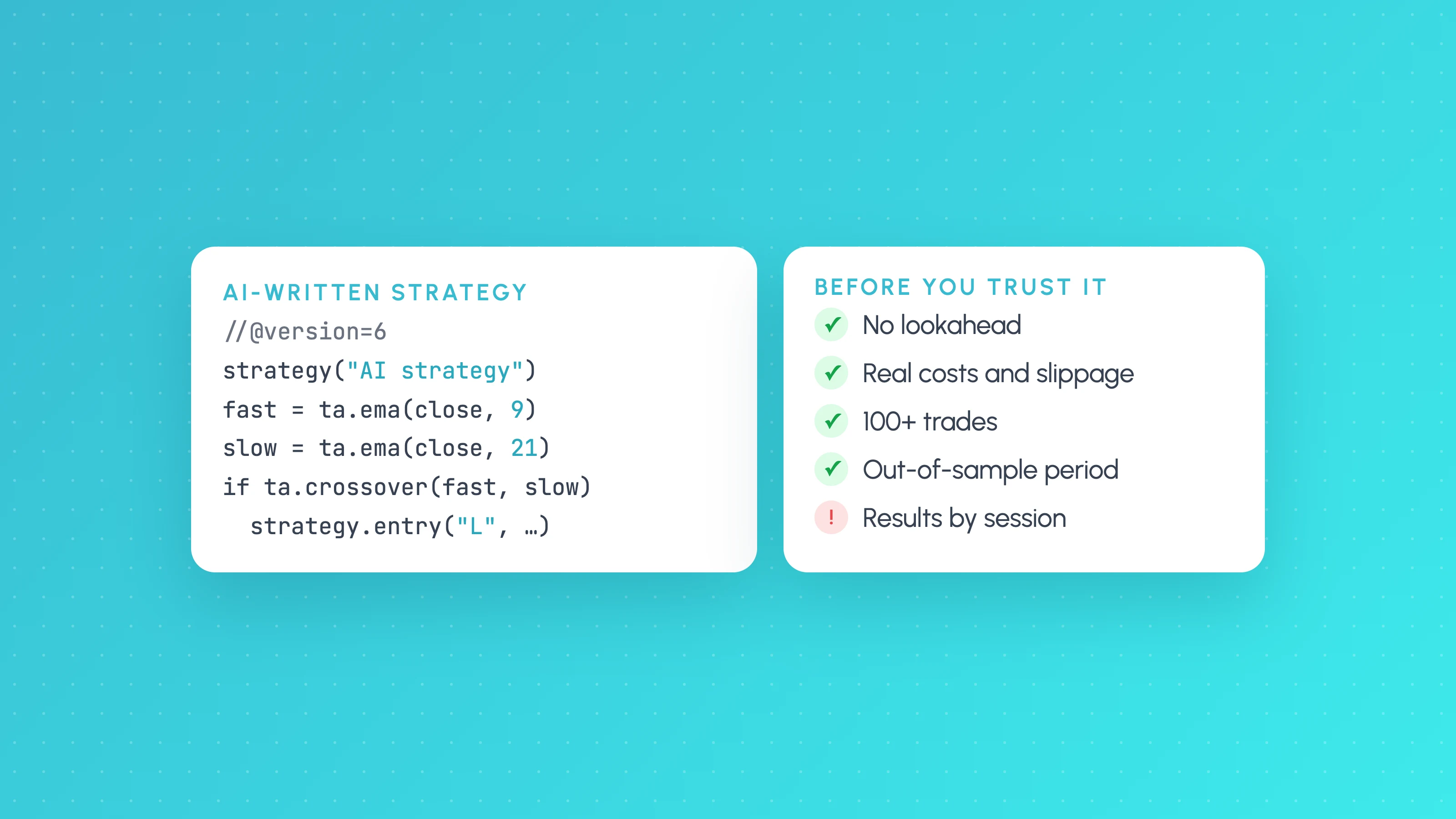
How to Test a Trading Strategy ChatGPT or Claude Wrote
A step-by-step way to check an AI-written Pine Script strategy: catch lookahead and repainting, set realistic costs, test out of sample and by market condition.
 AI and Pine Script
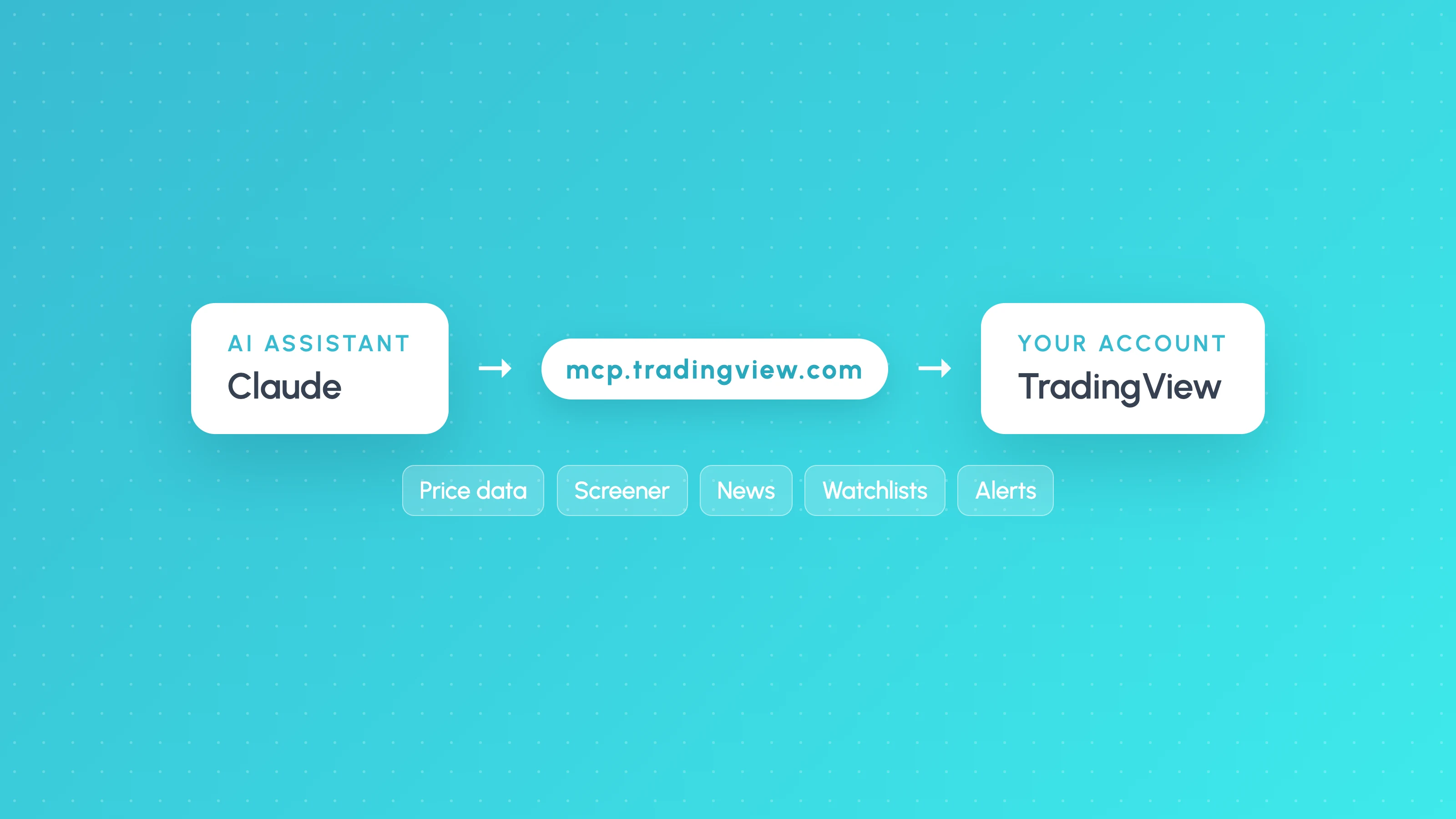
How to Connect Claude to TradingView (Official MCP Server, 2026)
Connect Claude to TradingView with the official MCP server: setup for Claude, Claude Code and ChatGPT, what it can do, and what it can't do for strategy testing.
 TradingView backtests
How to Analyse a TradingView Backtest by Session, Weekday and Hour
Analyse a TradingView backtest beyond the summary: split trades by session, weekday, hour, volatility and direction, check sample sizes, then test the rule.