

MT5 Trading Journal: Import Your MetaTrader 5 History and Analyse Your EAs
To get MetaTrader 5 trades into Tessera, open the History tab in your MT5 terminal, right-click and choose Report, save it as Excel (.xlsx), then upload it on the MetaTrader 5 import. There is no live MT5 sync, so you save and upload a newer report when you want new trades. Tessera reads the closed positions and shows expectancy, profit factor and drawdown, broken down by session, weekday, time of day and volatility.
The account number comes from the report itself, so you can import several MT5 logins, for example one per EA or per prop firm account.
Checked against the Tessera help centre · Updated
- Live sync
- No, file import only
- File import
- Trade History XLSX
- Markets
- Forex, Crypto, Indices
- Good to know
- Export from your terminal and upload.
How to export your MT5 trade history
These are the steps from the Tessera help centre, as of November 2026.
- Open your broker's MetaTrader 5 terminal.
- Open the History tab (in the Toolbox at the bottom).
- Right-click and choose the period you need, for example the last 3 months or a custom range.
- Right-click again, choose Report and save it as Excel (.xlsx).
Do not upload the HTML version of the report to the MT5 import; it only accepts .xlsx. Running the terminal in English keeps the sheet headers in the shape Tessera expects.
Import the file into Tessera
- Choose MetaTrader 5, then XLSX import.
- Enter the executing broker name: your real broker or prop firm, as you want it in the account picker.
- Choose the asset classes you trade on this login (forex, indices, metals, crypto and so on), so symbols resolve correctly.
- Set the timezone for the times in the file. This is usually your broker's MT5 server time, not your local time. Check it under Tools, then Options, then Server.
- Upload the
.xlsxand import.
Getting the timezone right matters more on MT5 than almost anywhere else, because many brokers run their server two or three hours ahead of UTC. If trades look shifted on the chart, re-import with the zone that matches the report's clock.
What Tessera reads from the file
- The Account row, which becomes the account code in Tessera. Company and server names are stored as metadata.
- Closed positions: symbol, direction, volume, open and close times and prices, and profit. Tessera focuses on closed position rows, not the full cash ledger.
- Symbols with broker suffixes (such as
EURUSD.raworUS30.cash) are matched to Tessera's instrument registry in most cases. If one does not match, you can map it or ask support to add it.
Deposits, withdrawals and balance operations in the report are not used to rebuild your balance curve.
What you can analyse
- Core statistics: win rate, expectancy, profit factor, average win and loss, and drawdown.
- EA behaviour by session. P&L by session, hour and weekday. Many EAs make their money in one window, often the London open, and give some of it back in another, such as the late New York session or the rollover hour when spreads widen.
- Volatility and market regime. Whether the EA needs trending, high-volatility conditions or does better in ranges, based on historical candles at each entry.
- MAE and MFE. How far each position went against and in favour of the EA, where candle data covers the period, to check whether its fixed stop and take-profit are sensible.
- Backtest versus live. Import the live account and compare it with the Strategy Tester results to see where execution, spread or slippage changes the picture. See why a strategy works in backtest but not live.
- Rule simulator. Replay the EA's trades on real candles with a session filter or a different exit and compare the result before you change the MQL5 code.
For Strategy Tester reports, our guide to MT5 Strategy Tester report export explains the deals, orders and positions tables.
Limitations
- Excel only. The MT5 import accepts
.xlsx. HTML reports go through the MT4 import (for MT4 Detailed Reports) or Custom CSV. - No live sync. There is no investor-password or API connection for MT5. You re-export and re-import.
- One login per report. If you run several EAs on one login, the help centre does not document splitting them by magic number. Running each EA on its own login is the reliable way to analyse them separately.
- Strategy Tester reports. The MT5 import is documented for the account History report. If a Strategy Tester report does not import, export the deals and use Custom CSV.
- Policies export as Pine Script, not MQL5. A rule you test in Tessera has to be added to the EA by hand.
- Trading P&L only. Portfolio growth shows cumulative trading P&L, not a balance curve with deposits and withdrawals.
- Plan. The Free plan imports the last 30 days of trades for one broker account into the trade log. Full history, statistics, reports and the simulator need a paid plan, from $39 a month. The free Entry Analysis report needs no paid plan.
Switching from TradeZella, TraderSync or Edgewonk
Some journals take the MT5 HTML report or connect through an investor password. Tessera uses the Excel History report instead, so the switch is a different save option in the same right-click menu, not a new workflow.
What changes is the analysis. Tessera is built for EA and systematic traders: results by market condition, the sample size behind each slice, and a simulator for testing a filter on the trades the EA already took. Read the full comparisons: TradeZella alternative, TraderSync alternative and Edgewonk alternative.
Frequently asked questions
- Is there a free MT5 trading journal?
- The free Entry Analysis report accepts an MT5 export and shows your results by session, weekday, volatility and market regime, with no card needed. The Free plan keeps the last 30 days of trades for one account in the trade log. Full history, statistics, reports and the simulator are on paid plans from $39 a month.
- What is the best trading journal for MT5?
- For manual trading, most journals will do. For EAs and rules-based strategies, look for one that reads the MT5 report without retyping, shows results by session and volatility with sample sizes, and lets you test a rule change before you edit the code. That is the gap Tessera is built for.
- Does Tessera connect to MT5 live?
- No. MetaTrader 5 is a file import. Save the History report as Excel and upload it when you want newer trades.
- Why are my MT5 trade times wrong?
- The report uses your broker's server time. Set the import timezone to the server's zone (check Tools, then Options, then Server) rather than your local time, and re-import.
- Can I import MetaTrader 4 as well?
- Yes, through the separate MT4 import, which reads the HTML Detailed Report. See all supported platforms.
Related guides
 Platforms and exports
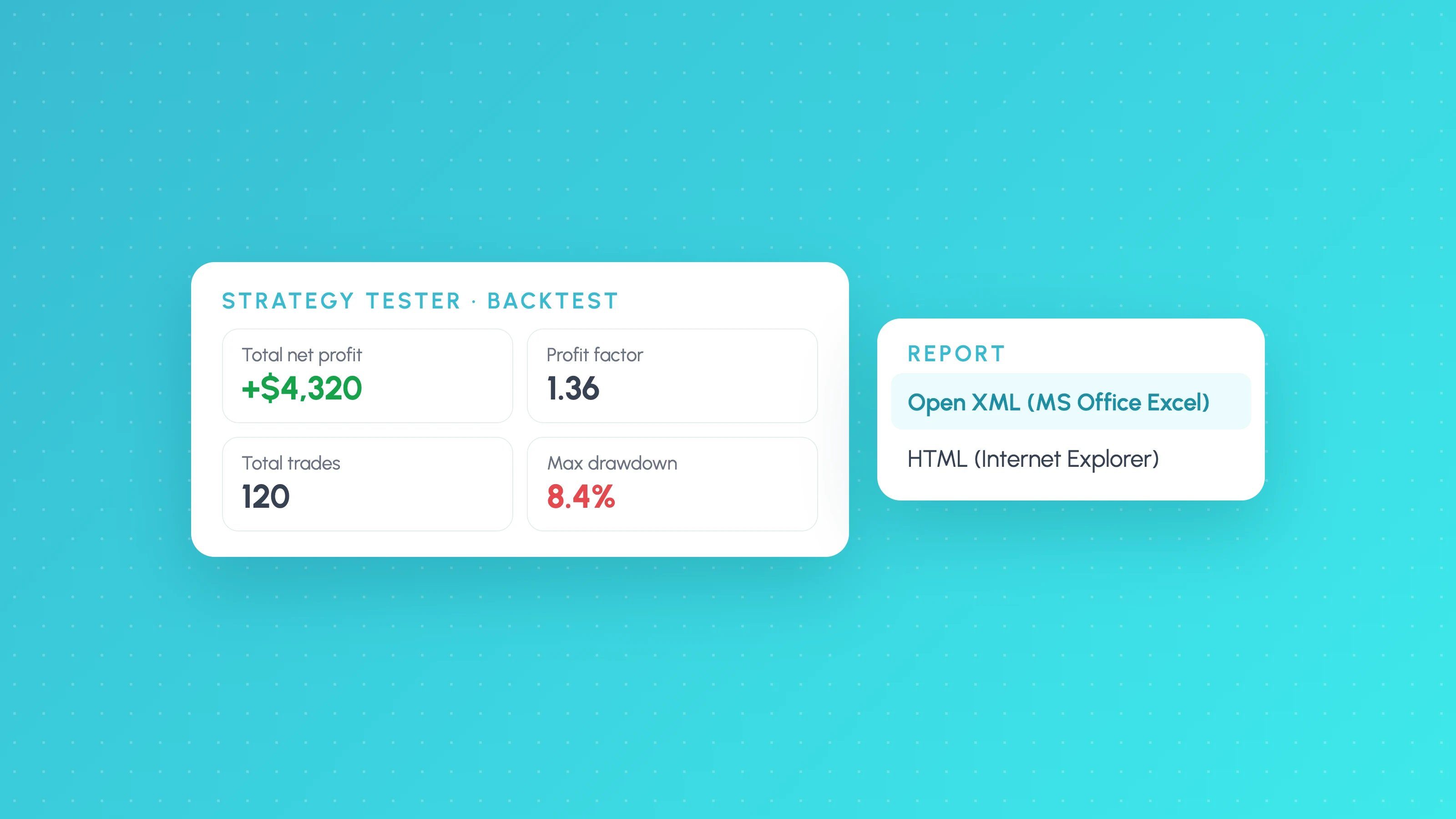
MT5 Strategy Tester Report Export: Excel, HTML and EA Analysis
Save your MT5 Strategy Tester report as Excel or HTML, understand deals, orders and positions, and break EA backtest results down by session and volatility.
 TradingView backtests
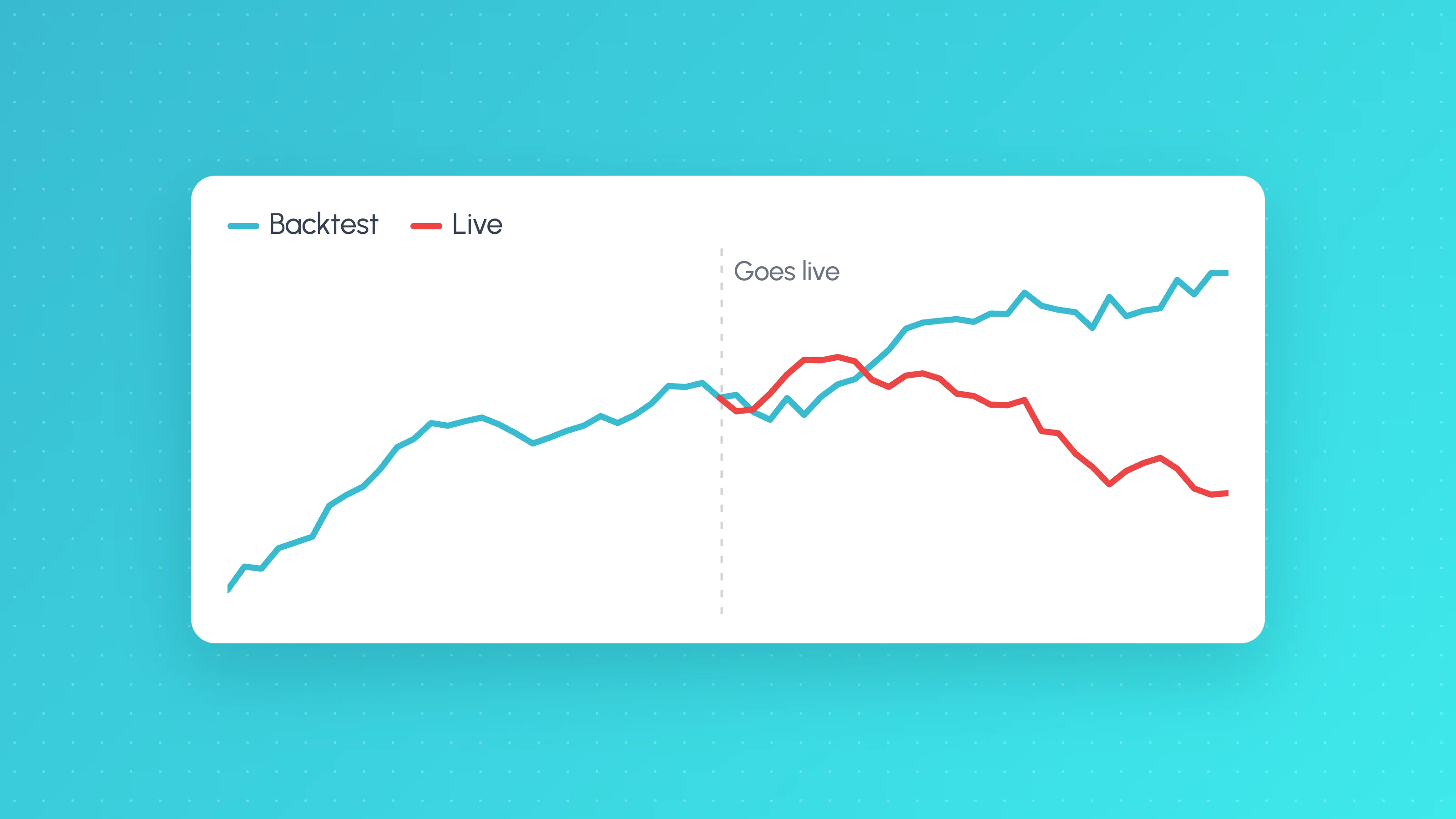
Why Does My Strategy Work in Backtest but Not Live?
Why a TradingView strategy works in backtest but not live: costs, fill assumptions, repainting, gaps, data, alert delays and overfitting, with a check for each.
 Prop firms
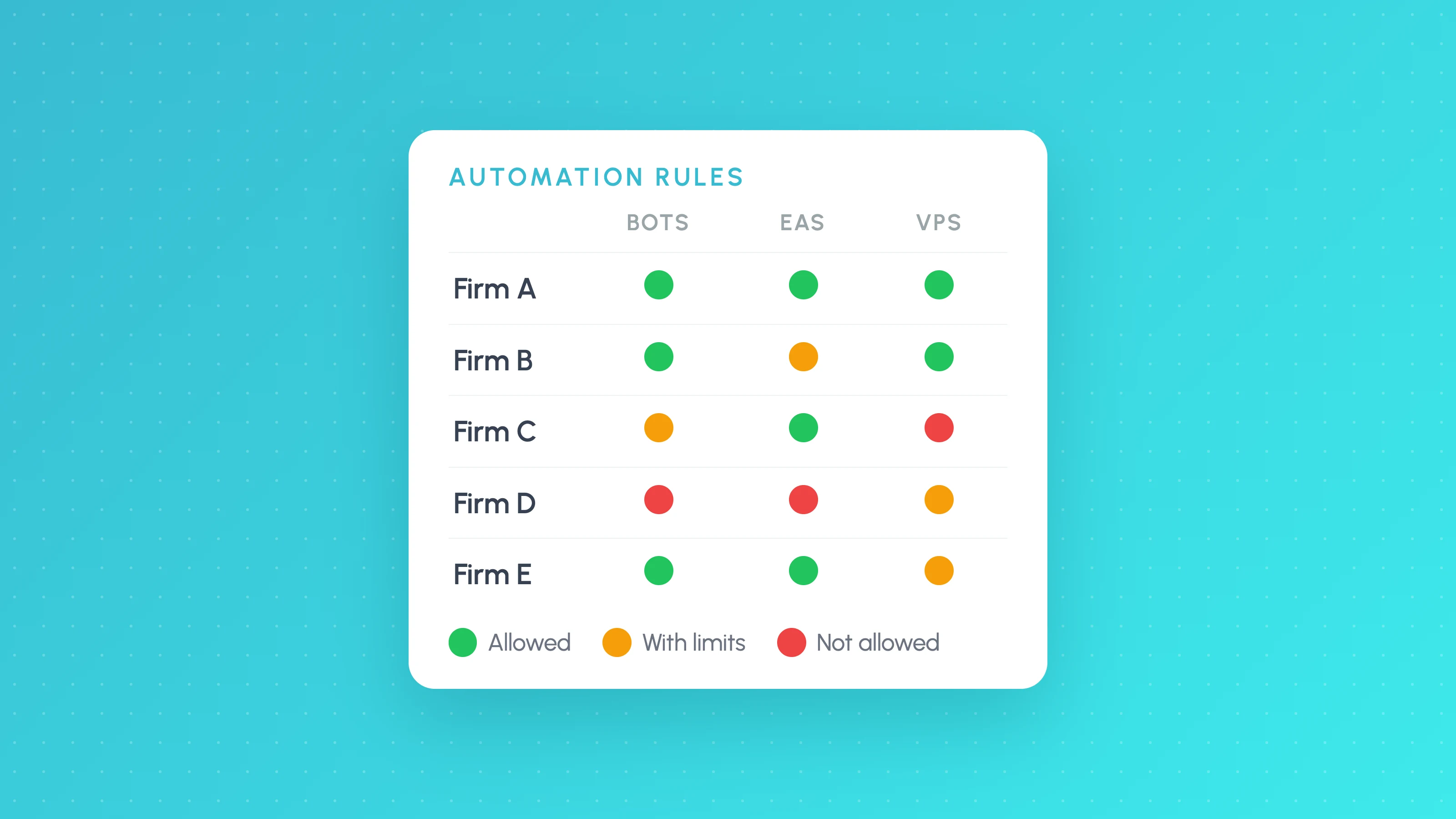
Futures and Forex Prop Firms That Allow Algo Trading in 2026: Rules for Bots, EAs and Automation
Prop firms that allow algo trading as of October 2026: Topstep, Lucid, Tradeify, FundedNext and FTMO allow bots with limits; Apex bans them. Rules table.
Other platforms
- Binance trading journalLive sync and file import · Crypto
- cTrader trading journalLive sync and file import · Forex, Futures, Crypto, Stocks
- Hyperliquid trading journalFile import · Crypto
- Interactive Brokers trading journalLive sync and file import · Stocks, Options, Futures, Forex
- NinjaTrader trading journalFile import · Futures
- OANDA trading journalLive sync and file import · Forex
- Tradovate trading journalFile import · Futures
- All supported platformsIncluding MT4, TradingView and Custom CSV