

NinjaTrader Trading Journal: Import Your Futures Trades and Analyse Every Session
To get NinjaTrader trades into Tessera, export the Orders report as a CSV from the Tradovate account behind your NinjaTrader connection and upload it on the NinjaTrader import. That is the file layout Tessera's NinjaTrader import reads. If you only have a NinjaTrader Trade Performance export, bring it in through Custom CSV instead. Either way, Tessera pairs your fills into round trips and shows expectancy, profit factor and drawdown, broken down by session, weekday, time of day and volatility.
There is no live NinjaTrader sync, so you upload a newer file when you have new fills.
Checked against the Tessera help centre · Updated
- Live sync
- No, file import only
- File import
- Orders CSV
- Markets
- Futures
- Good to know
- For NinjaTrader connected through Tradovate.
How to export your NinjaTrader trades
Which export you use depends on how your NinjaTrader account is connected. This is the most important thing to get right, so check it before you export.
If your account runs through Tradovate (preferred)
If your NinjaTrader connection uses a Tradovate account, export from Tradovate. These are the steps from the Tessera help centre, as of November 2026.
- Open the Tradovate account behind your NinjaTrader connection (in Tradovate's desktop or web platform).
- Go to Accounts, select the account and open its settings (the gear icon).
- Open the Orders tab, set the date range and refresh the list.
- Click Download Report to save it as CSV.
- Optionally, export Cash History for the same period so fees can be attached to each fill.
The file should contain columns such as Account, Contract, B/S, Fill Time and Status. That is the shape Tessera's NinjaTrader import expects.
If you only have a Trade Performance export
Many traders export from NinjaTrader 8's Control Center: New, then Trade Performance, pick the account and dates, display Executions, click Generate, then right-click the grid and export it. Tessera's NinjaTrader import will most likely reject this file, because it is a different layout from the Tradovate Orders report.
Use Custom CSV import for it instead. Choose the "one row per fill" mode, map the columns (instrument, time, side, quantity and price), set the timezone and preview before importing. Save the mapping as a template and the next file takes seconds.
Import the file into Tessera
- Choose NinjaTrader, then CSV import.
- Set the timezone (an IANA name such as
America/New_York) to match the Fill Time column. That is usually your computer's local time. - Upload the Orders CSV and, if you have it, attach Cash History.
- Import.
What Tessera reads from the file
- Filled orders only. Cancelled and rejected rows are skipped.
- Account codes from the Account column.
- Contract, side, price, quantity and Fill Time, paired into round trips first in, first out, per account and contract.
- Fees from Cash History, if you attach it: exchange, clearing, NFA and commission.
- Asset class: always futures.
What you can analyse
- Core statistics: win rate, expectancy, profit factor, average win and loss, and drawdown, for the whole account or a filtered slice.
- Futures sessions. P&L by session and hour. For an ES or NQ strategy that runs nearly around the clock, this is where you find out whether the Asian session, the London morning or the first hour of the cash open is carrying the results.
- Weekday and time of day. Whether Monday opens or Friday afternoons cost you, with the number of trades behind each figure so you can tell a pattern from noise.
- Volatility and market regime. Trades grouped by the conditions at entry, using historical candles for the contract.
- MAE and MFE. How far each trade went against you and in your favour, where candle data covers the period, to set stops and targets from your own trades rather than round numbers.
- Rule simulator. Replay the trades you took with a session filter or a different exit on real candles and compare the result before you edit the NinjaScript.
If your strategy trades a funded account, see our guide to prop firms that allow algo trading and check your weekday results against the firm's daily loss rule.
Limitations
- The NinjaTrader import expects the Tradovate Orders layout. A native NinjaTrader 8 Executions export needs Custom CSV.
- File import only. There is no NinjaTrader auto-sync.
- Futures only on this import.
- Trading P&L only. Portfolio growth shows cumulative trading P&L, not a balance curve with deposits and withdrawals.
- Policies export as Pine Script, not NinjaScript. If you run the strategy in NinjaTrader, you apply a tested rule to your NinjaScript yourself.
- Plan. The Free plan imports the last 30 days of trades for one broker account into the trade log. Full history, statistics, reports and the simulator need a paid plan, from $39 a month. The free Entry Analysis report needs no paid plan.
Switching from TradeZella, TraderSync or Edgewonk
Some journals accept the NinjaTrader Trade Performance Executions file directly. Tessera's dedicated NinjaTrader import does not, so if that is the file you have been using, either switch to the Tradovate Orders report or set up a Custom CSV template once.
After that, the difference is the analysis. Tessera focuses on where a systematic strategy makes and loses money by market condition, and lets you test a filter on the trades you already took. Read the full comparisons: TradeZella alternative, TraderSync alternative and Edgewonk alternative.
Frequently asked questions
- What is the best trading journal for NinjaTrader?
- It depends on what you trade and how. For discretionary trading with screenshots and tags, a general journal is fine. For an automated or rules-based NinjaTrader strategy, you want one that breaks results down by session, weekday and volatility and lets you test a rule change, which is what Tessera is built for. Try it free with the Entry Analysis report.
- How do I export trade performance from NinjaTrader?
- In NinjaTrader 8, open Control Center, then New, then Trade Performance. Choose the account and dates, display Executions, generate the report and export the grid. To import that file into Tessera, use Custom CSV. If your account runs through Tradovate, the Tradovate Orders CSV is the better file.
- Does Tessera sync with NinjaTrader automatically?
- No. NinjaTrader is a file import. Export and upload a newer file when you want new trades in Tessera.
- Do I use the NinjaTrader or the Tradovate import?
- Both read the same Tradovate Orders format, so either works for a Tradovate-backed account. The Tradovate trading journal page has the same export steps.
- Can I import NinjaTrader Strategy Analyzer backtests?
- There is no dedicated Strategy Analyzer import. If you can export the backtest trades as a CSV, Custom CSV can read it.
Related guides
 Prop firms
Futures and Forex Prop Firms That Allow Algo Trading in 2026: Rules for Bots, EAs and Automation
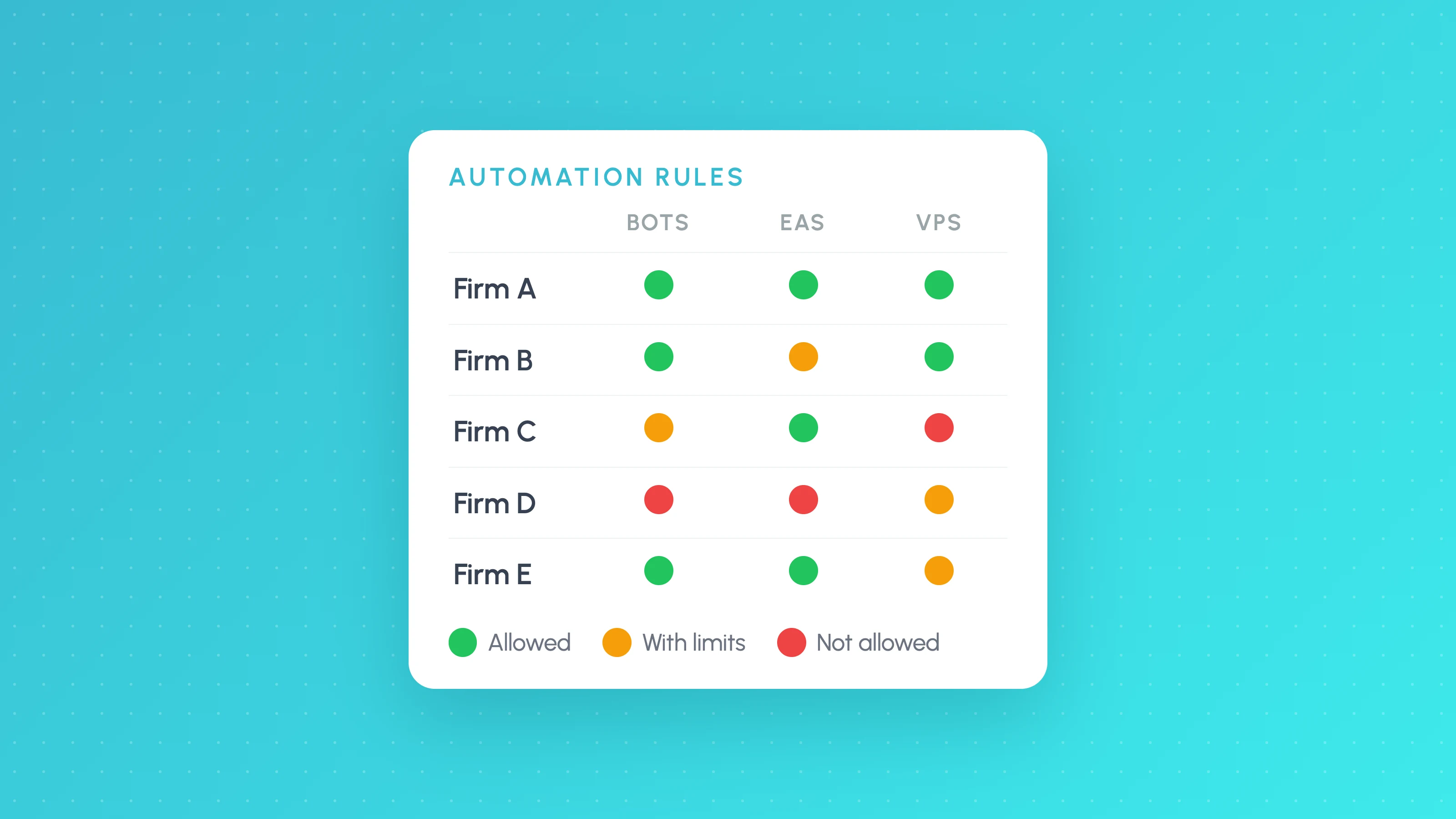
Prop firms that allow algo trading as of October 2026: Topstep, Lucid, Tradeify, FundedNext and FTMO allow bots with limits; Apex bans them. Rules table.
 Trading metrics
How Much Slippage Should You Assume in a Backtest? (and How to Measure It on Live Fills)
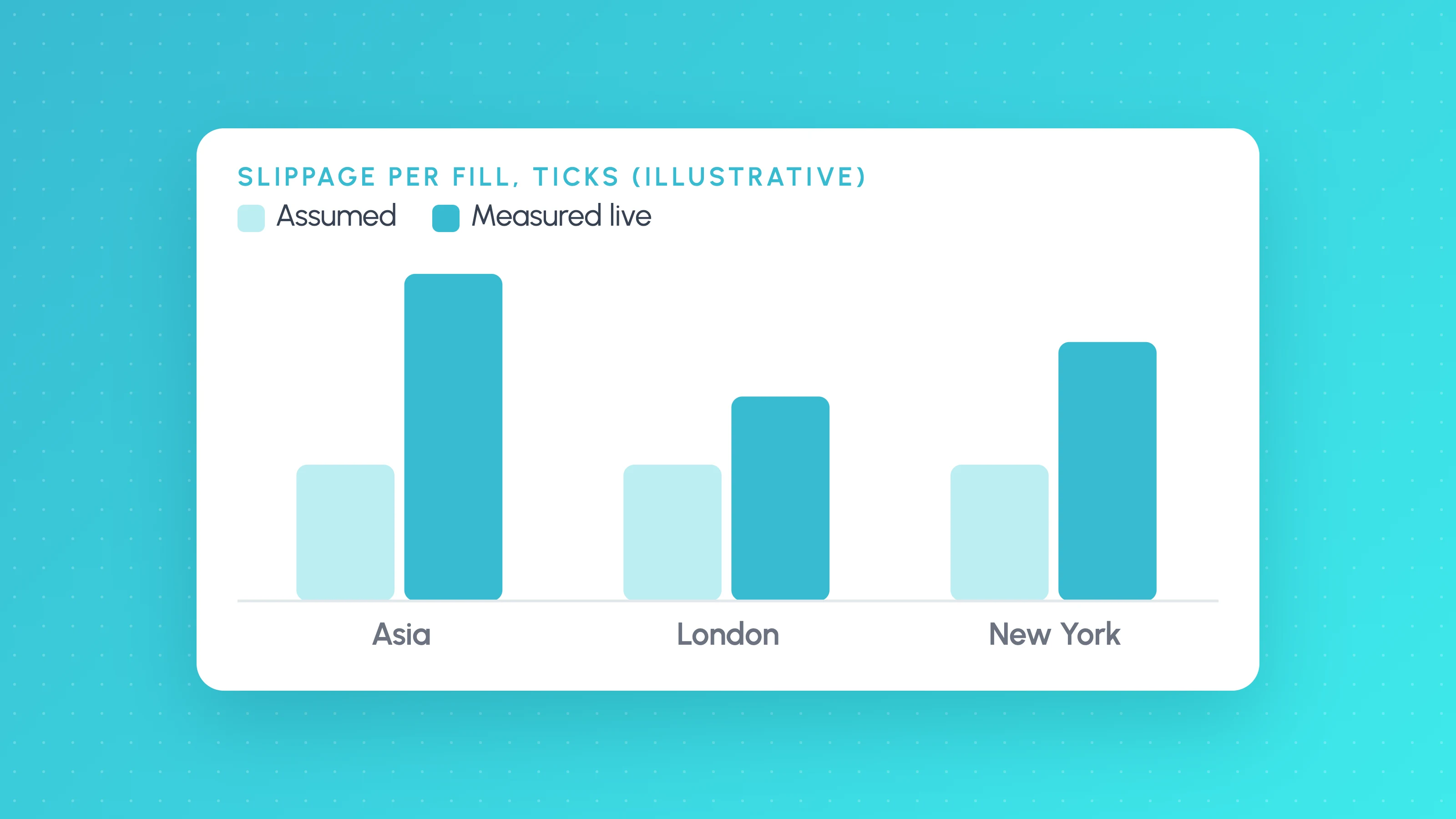
How much slippage in algo trading? Start at 1-2 ticks per side on liquid futures, more for stops and news, then measure real fills to replace the guess.
 Trading metrics
MAE and MFE Analysis: Set Stops and Targets From Your Own Trades
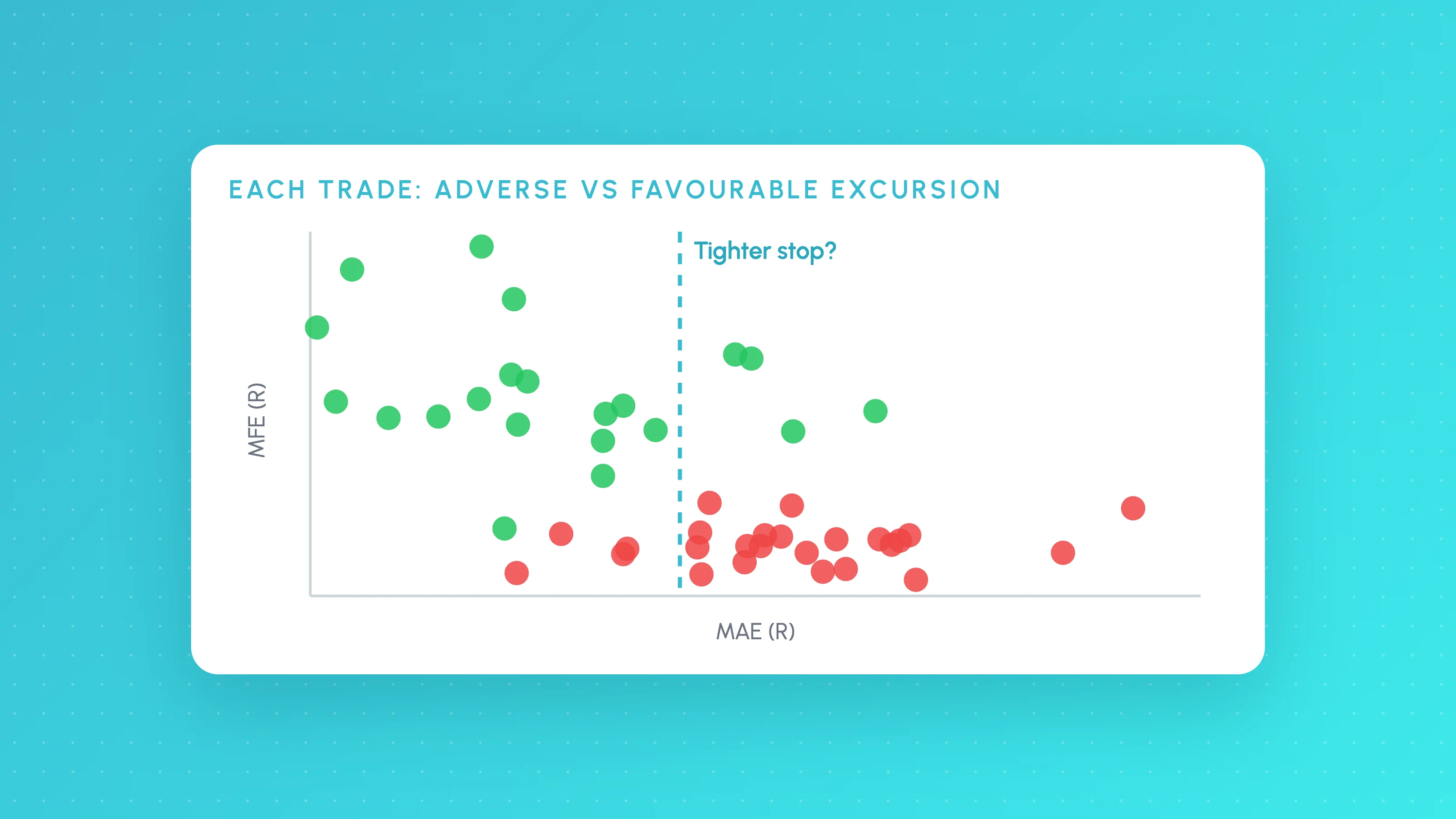
How to calculate MAE and MFE for each trade, read the scatter plots, set stops from winners' MAE and targets from MFE, then test the change on real candles.
Other platforms
- Binance trading journalLive sync and file import · Crypto
- cTrader trading journalLive sync and file import · Forex, Futures, Crypto, Stocks
- Hyperliquid trading journalFile import · Crypto
- Interactive Brokers trading journalLive sync and file import · Stocks, Options, Futures, Forex
- MetaTrader 5 trading journalFile import · Forex, Crypto, Indices
- OANDA trading journalLive sync and file import · Forex
- Tradovate trading journalFile import · Futures
- All supported platformsIncluding MT4, TradingView and Custom CSV