

cTrader Trading Journal: Sync Your Account or Import Your History
To get cTrader trades into Tessera, connect your account with OAuth (read-only access through cTrader's Open API) and run a sync, or export a statement with a Deals section from cTrader's History and upload it as a CSV. Most people use OAuth for day-to-day sync and a statement file to backfill older history. Tessera then shows expectancy, profit factor and drawdown, broken down by session, weekday, time of day and volatility.
cTrader is used by many brokers and prop firms, so on a CSV import you also give the real executing broker's name, separate from the cTrader label.
Checked against the Tessera help centre · Updated
- Live sync
- OAuth
- File import
- statement Deals section
- Markets
- Forex, Futures, Crypto, Stocks
- Good to know
- Deeper history via file.
How to connect or export your cTrader history
These are the steps from the Tessera help centre, as of November 2026.
Connect with OAuth (live sync)
- In Tessera, choose cTrader and start the OAuth connection.
- Select the asset classes you trade on the account.
- Complete the cTrader (Spotware) consent screen, which grants read-only account access.
- If you have several cTrader accounts, pick the one Tessera should sync.
- Run Sync to pull your closed deals into the Trade Log.
After connecting, Tessera fills in the executing broker from the Open API where it is available.
Export your cTrader history as a statement (backfill)
- Open cTrader (desktop or web) and select the account.
- Open Trade Watch, then History, or use your account's Statement flow.
- Set the date range you need.
- Click Statement, then save or export it so you get a file with a Deals section. The statement opens as HTML or Excel; save it locally as CSV when that is offered.
Check that the Deals table includes opening and closing times and net P&L in your account currency. The time columns often carry an offset in the header, such as Opening Time (UTC+8), and Tessera uses that offset unless you override it.
Import the statement into Tessera
- Choose cTrader, then CSV import.
- Enter your account code (your cTrader account number, which is not always in the file), the executing broker name (the real broker or prop firm) and the asset classes you trade.
- Upload the statement CSV and import.
What Tessera reads
- Closed deals, from OAuth sync or from the statement's Deals section: symbol, direction, volume, opening and closing times, and net P&L in account currency.
- The timezone offset in the Deals time column headers.
- Executing broker metadata from the Open API on synced accounts, or the name you enter on CSV import.
Deposits and withdrawals in the statement's Transactions section are not imported as cash transfers.
What you can analyse
- Core statistics: win rate, expectancy, profit factor, average win and loss, and drawdown.
- cBot behaviour by session. P&L by session, hour and weekday, so you can see whether a cBot's results come from the London open, the New York overlap or the quiet Asian hours, and which window gives it back.
- Volatility and market regime. Whether the strategy needs trend and movement or does better in ranges, based on historical candles at each entry.
- MAE and MFE. How far each trade went against and in favour of you, where candle data covers the instrument and period. See MAE and MFE analysis.
- Prop firm accounts. Many prop firms run on cTrader. Weekday and session breakdowns show which days would put a daily loss limit at risk. See prop firms that allow algo trading.
- Rule simulator. Replay the trades you took on real candles with a session filter or a different stop or target, before you change the cBot.
Limitations
- OAuth lookback is capped. Use statement CSVs for older history.
- No cash transfers. Deposits and withdrawals from the statement's Transactions section are not imported.
- Trading P&L only. Portfolio growth shows cumulative trading P&L, not your broker balance.
- Policies export as Pine Script, not cTrader code. A rule you test in Tessera has to be added to a cBot by hand.
- Check the account before syncing if several cTrader accounts appear.
- Plan. The Free plan imports the last 30 days of trades for one broker account into the trade log. Full history, statistics, reports and the simulator need a paid plan, from $39 a month. The free Entry Analysis report needs no paid plan.
Switching from TradeZella, TraderSync or Edgewonk
If you have been uploading cTrader statements to another journal, the same statement with a Deals section works in Tessera for your history. Connect OAuth for new trades so you do not have to keep exporting.
What changes is the analysis. Tessera is built for algo and systematic traders: results by market condition and time of day, and a simulator for testing a filter on the trades you already took. Read the full comparisons: TradeZella alternative, TraderSync alternative and Edgewonk alternative.
Frequently asked questions
- How do I export my history from cTrader?
- Open Trade Watch, then History, set the date range and click Statement. Save it so you have a file with a Deals section, as CSV if that is offered, and upload that to Tessera's cTrader import.
- Does Tessera sync with cTrader automatically?
- Yes, through OAuth. You approve read-only access on cTrader's consent screen and run a sync for new deals. The sync only looks back so far, so use a statement CSV for older history.
- Can Tessera place trades on my cTrader account?
- Only through Launchpad, on a paid plan. The OAuth connection used for journal sync is read-only and never trades. Launchpad is separate: it can run a Strategy Lab strategy on a real cTrader account if you set it up to. In Copilot mode you approve each trade; in Autopilot mode it trades inside the limits you set, with stop loss and take profit attached at the broker. The strategy, settings and risk are yours, and a backtest is not a guide to future results.
- Does it work with prop firm cTrader accounts?
- If you can connect the account with OAuth or export its statement, yes. Enter the prop firm's name as the executing broker on CSV import so the account is labelled clearly.
- Why are my cTrader trade times off by a few hours?
- The statement's time columns carry an offset in the header. If it does not match how you exported, override it on import and re-import.
Related guides
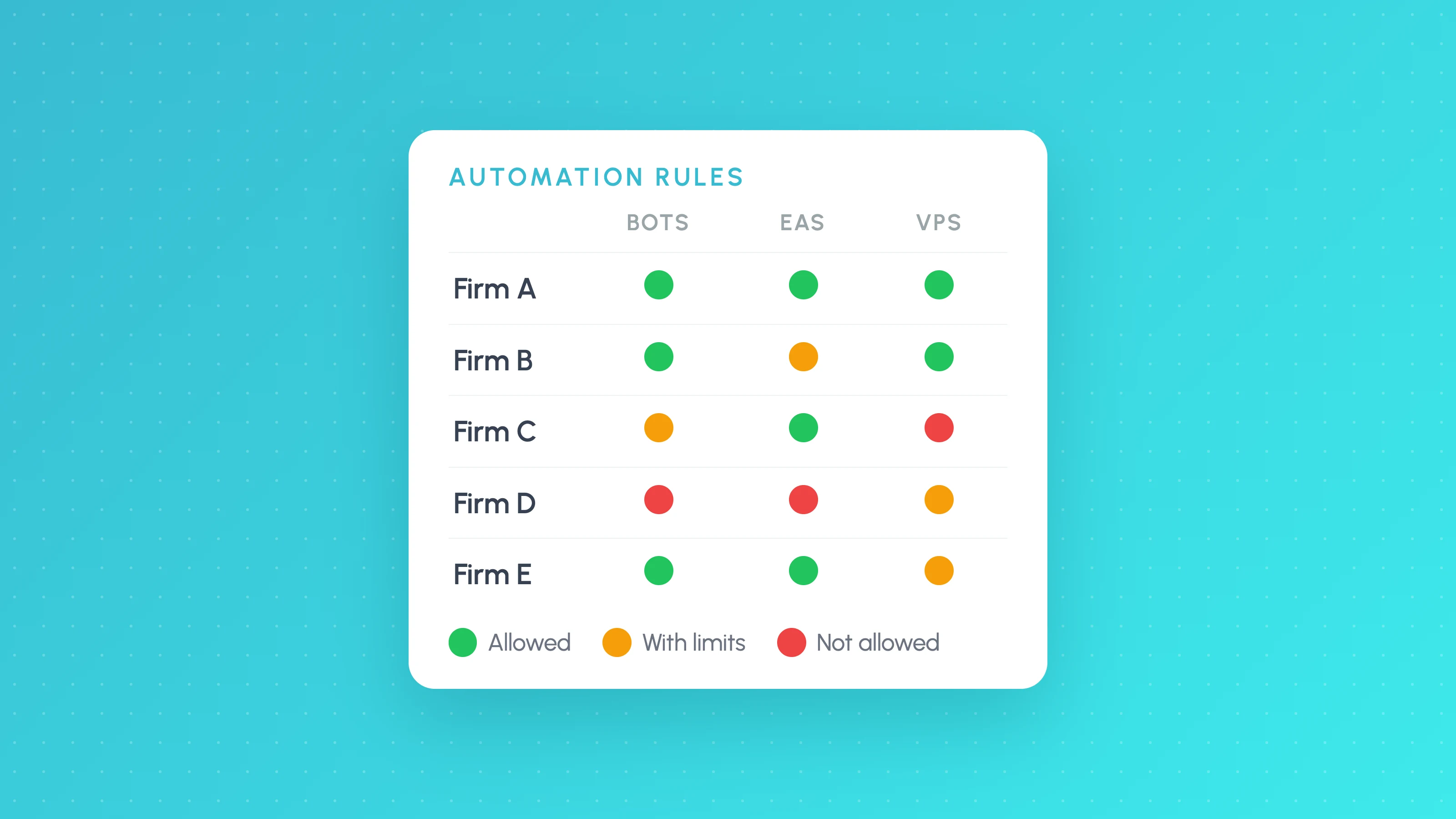 Prop firms
Futures and Forex Prop Firms That Allow Algo Trading in 2026: Rules for Bots, EAs and Automation
Prop firms that allow algo trading as of October 2026: Topstep, Lucid, Tradeify, FundedNext and FTMO allow bots with limits; Apex bans them. Rules table.
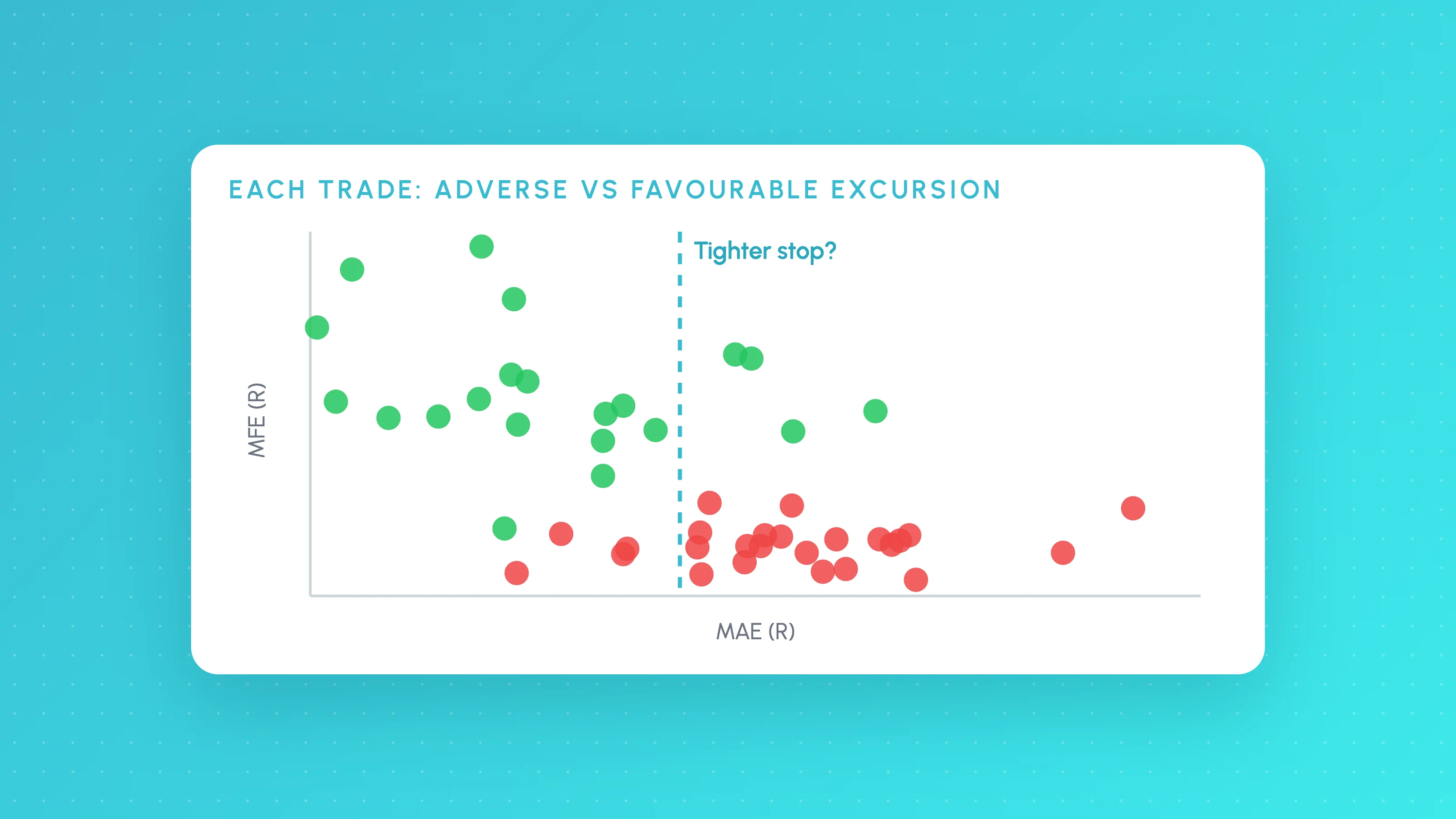 Trading metrics
MAE and MFE Analysis: Set Stops and Targets From Your Own Trades
How to calculate MAE and MFE for each trade, read the scatter plots, set stops from winners' MAE and targets from MFE, then test the change on real candles.
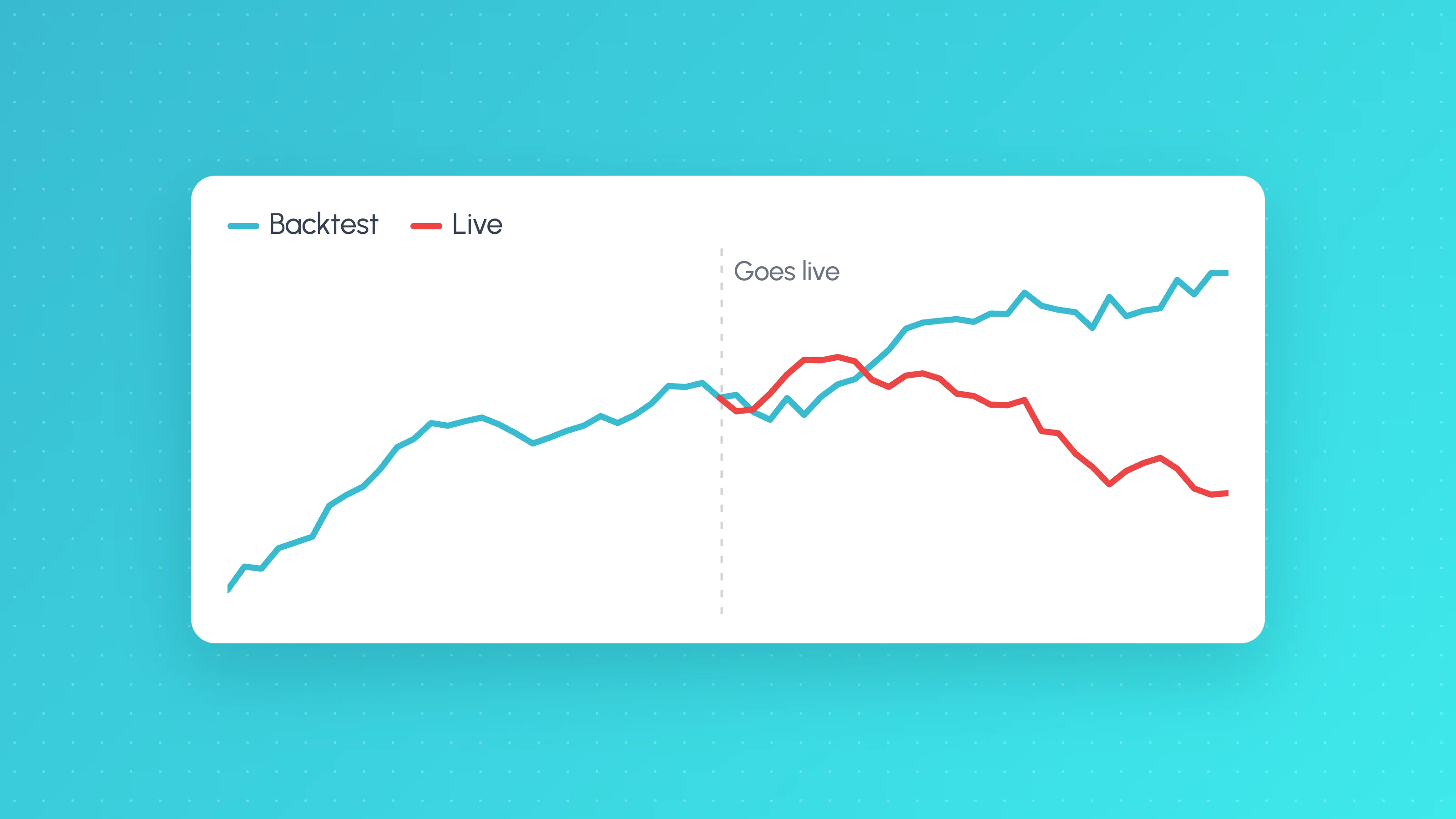 TradingView backtests
Why Does My Strategy Work in Backtest but Not Live?
Why a TradingView strategy works in backtest but not live: costs, fill assumptions, repainting, gaps, data, alert delays and overfitting, with a check for each.
Other platforms
- Binance trading journalLive sync and file import · Crypto
- Hyperliquid trading journalFile import · Crypto
- Interactive Brokers trading journalLive sync and file import · Stocks, Options, Futures, Forex
- MetaTrader 5 trading journalFile import · Forex, Crypto, Indices
- NinjaTrader trading journalFile import · Futures
- OANDA trading journalLive sync and file import · Forex
- Tradovate trading journalFile import · Futures
- All supported platformsIncluding MT4, TradingView and Custom CSV