

OANDA Trading Journal: Sync Your Forex Trades and See Where You Make Money
To get OANDA trades into Tessera, connect your account with a personal access token and your account ID (live or practice) and run a sync, or export a Transactions CSV from the OANDA HUB and upload it. Sync keeps the Trade Log up to date; the CSV is useful for a one-off history load or if you would rather not store a token yet. Tessera then shows expectancy, profit factor and drawdown, broken down by session, weekday, time of day and volatility.
You can start with a CSV and add API credentials later.
Checked against the Tessera help centre · Updated
- Live sync
- Yes
- File import
- Transactions CSV
- Markets
- Forex
- Good to know
- Live or practice accounts.
How to connect or export your OANDA trades
These are the steps from the Tessera help centre, as of November 2026.
Connect with the OANDA API (live sync)
- Log in to the OANDA HUB for your live or practice account.
- Open Tools, then API (or Manage API Access under account services, depending on your OANDA division).
- Click Generate and copy the token. Treat it like a password.
- Note your account ID (the sub-account you trade) and whether it is live or practice.
- In Tessera, choose OANDA, paste the token, enter the account ID and select Live or Practice.
- Connect, then run a sync.
Use a token from the same environment as the account: a live token for a live account, a practice token for a practice account.
Export a Transactions CSV
- Log in to the OANDA HUB.
- Open Reports, then Transaction History.
- Select the account, start date, end date and timezone.
- Click Show Transactions, then Export to csv.
Choose the timezone carefully. OANDA writes it into the TRANSACTION DATE column, and Tessera reads it from there, so there is no separate timezone setting on import. A wrong zone at export is the most common cause of trades appearing in the wrong session.
Import the CSV into Tessera
- Choose OANDA, then CSV import.
- Enter the account code Tessera should use, usually your OANDA account ID.
- Optionally set asset classes, upload the Transactions CSV and import.
Use the HUB Transactions report, not other OANDA exports.
What Tessera reads
- Trades from the API, or from the transactions in the HUB report: instrument, direction, units, prices, times and realised P&L.
- The timezone embedded in the
TRANSACTION DATEcolumn of a CSV. - Asset classes you declare (forex, metals, commodities, indices and so on), which help symbols resolve correctly.
Deposits and withdrawals are not rebuilt into a balance curve.
What you can analyse
- Core statistics: win rate, expectancy, profit factor, average win and loss, and drawdown.
- Forex sessions. P&L by Asian, London and New York session and by hour, including the London and New York overlap and the rollover hour, when spreads often widen.
- Weekday. Whether Monday opens or Friday afternoons cost you, with the number of trades behind each figure.
- Volatility and market regime. Trades grouped by conditions at entry. Tessera's forex and metals candles come from OANDA, so the chart data matches the market you traded.
- MAE and MFE. How far each trade went against and in favour of you, where candle data covers the instrument and period.
- TradingView strategies. If you run a Pine strategy on OANDA through TradingView, compare the live account with the Strategy Tester export, then test a session filter on your real trades. Rules that hold up export as Pine Script. See Pine Script session time filters.
Limitations
- Trading P&L only. Portfolio growth shows cumulative trading P&L. Deposits and withdrawals are not reconstructed from the API or CSV.
- v20 accounts. API access needs a v20-capable OANDA account and a valid personal access token for that environment.
- Export timezone. The timezone you choose in the HUB is baked into the CSV. If it is wrong, re-export.
- Sync is on request. Run a sync when you want the latest trades.
- Plan. The Free plan imports the last 30 days of trades for one broker account into the trade log. Full history, statistics, reports and the simulator need a paid plan, from $39 a month. The free Entry Analysis report needs no paid plan.
Switching from TradeZella, TraderSync or Edgewonk
The OANDA HUB Transactions CSV is the same file whichever journal you use, so you can load your full history into Tessera in one go, then connect the API for new trades.
What changes is the analysis. Tessera is built for algo and systematic traders: results by session and market condition, and a simulator for testing a filter on the trades you already took. Read the full comparisons: TradeZella alternative, TraderSync alternative and Edgewonk alternative.
Frequently asked questions
- Does Tessera sync with OANDA automatically?
- Yes, through the OANDA API. Paste a personal access token and your account ID, choose live or practice, and run a sync whenever you want the latest trades.
- Can I journal an OANDA practice (demo) account?
- Yes. Select Practice when you connect and use a token generated for the practice environment.
- Is my OANDA token safe?
- Treat it like a password. Tessera uses it to read your trades and never places orders.
- Why are my OANDA trades in the wrong session?
- The timezone you chose when exporting from the HUB is written into the file. Export again with the right zone and re-import.
- I trade OANDA through TradingView. Can I import my backtest too?
- Yes. Upload the Strategy Tester List of Trades through the TradingView import. Our guide to exporting TradingView Strategy Tester results shows how.
Related guides
 TradingView backtests
How to Export TradingView Strategy Tester Results (2026)
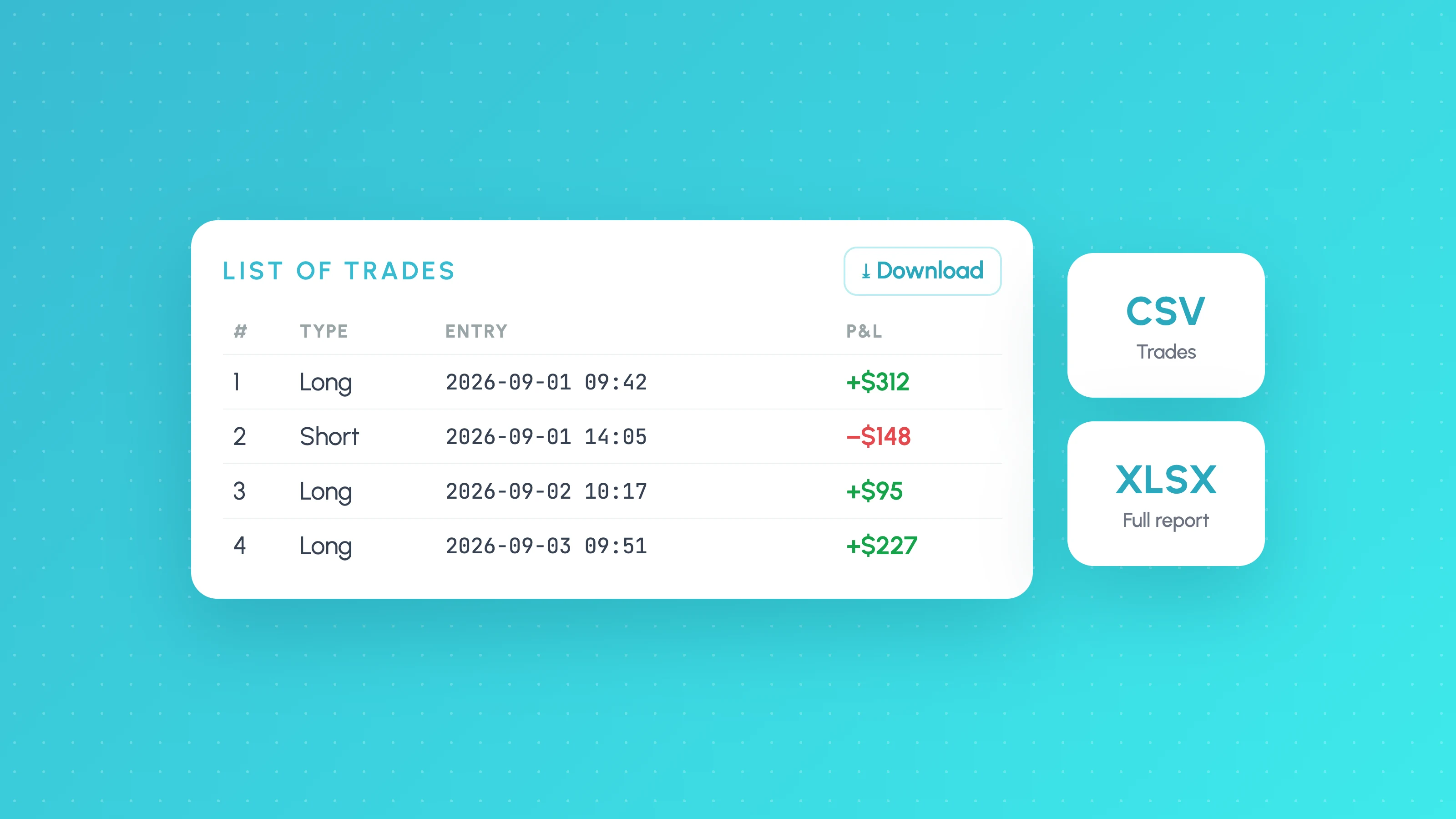
Export TradingView Strategy Tester results as CSV or XLSX: where the download buttons are, which plan you need, the 9,000 trade limit and what columns mean.
 TradingView backtests
Why Does My Strategy Work in Backtest but Not Live?
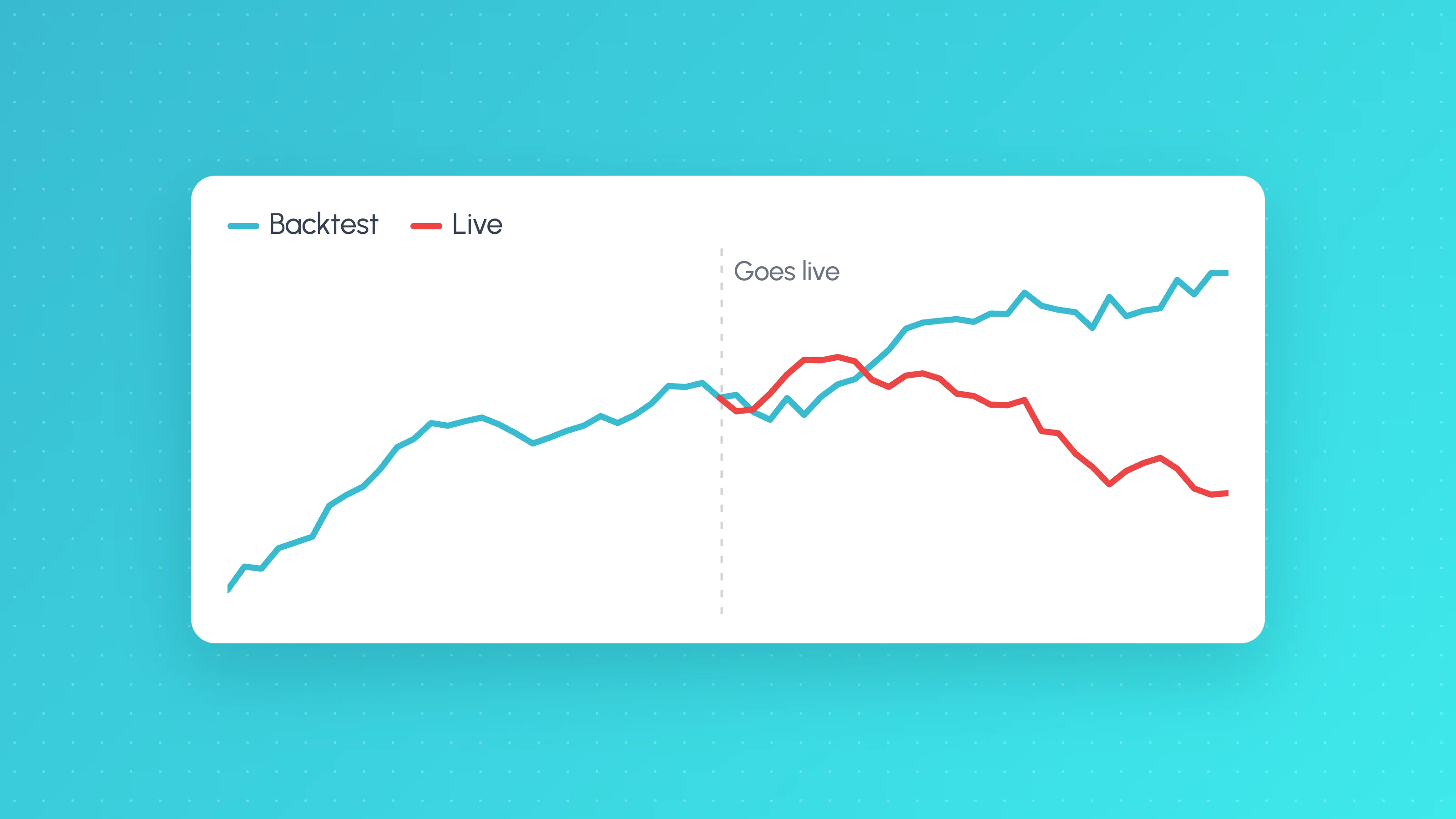
Why a TradingView strategy works in backtest but not live: costs, fill assumptions, repainting, gaps, data, alert delays and overfitting, with a check for each.
 AI and Pine Script
Pine Script Session, Time and Day of Week Filters (v6)
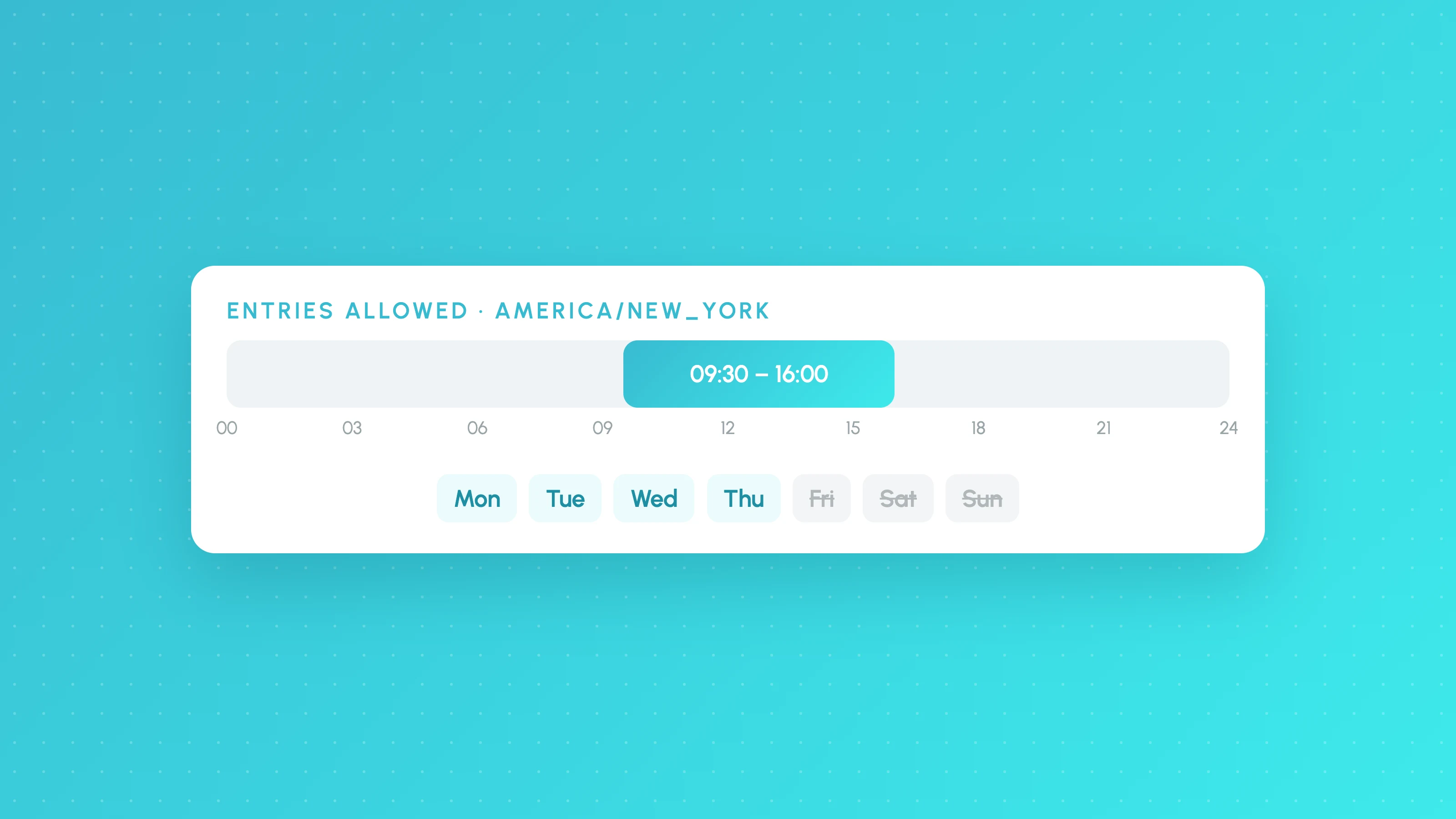
Copy-paste Pine Script v6 session, time-of-day and day of week filters, with time zone and DST handling, exits outside the filter and an overfitting check.
Other platforms
- Binance trading journalLive sync and file import · Crypto
- cTrader trading journalLive sync and file import · Forex, Futures, Crypto, Stocks
- Hyperliquid trading journalFile import · Crypto
- Interactive Brokers trading journalLive sync and file import · Stocks, Options, Futures, Forex
- MetaTrader 5 trading journalFile import · Forex, Crypto, Indices
- NinjaTrader trading journalFile import · Futures
- Tradovate trading journalFile import · Futures
- All supported platformsIncluding MT4, TradingView and Custom CSV