

How to Connect Claude to TradingView (Official MCP Server, 2026)
Connect Claude to TradingView with the official MCP server: setup for Claude, Claude Code and ChatGPT, what it can do, and what it can't do for strategy testing.
By Tessera Trades · Updated · 6 min read
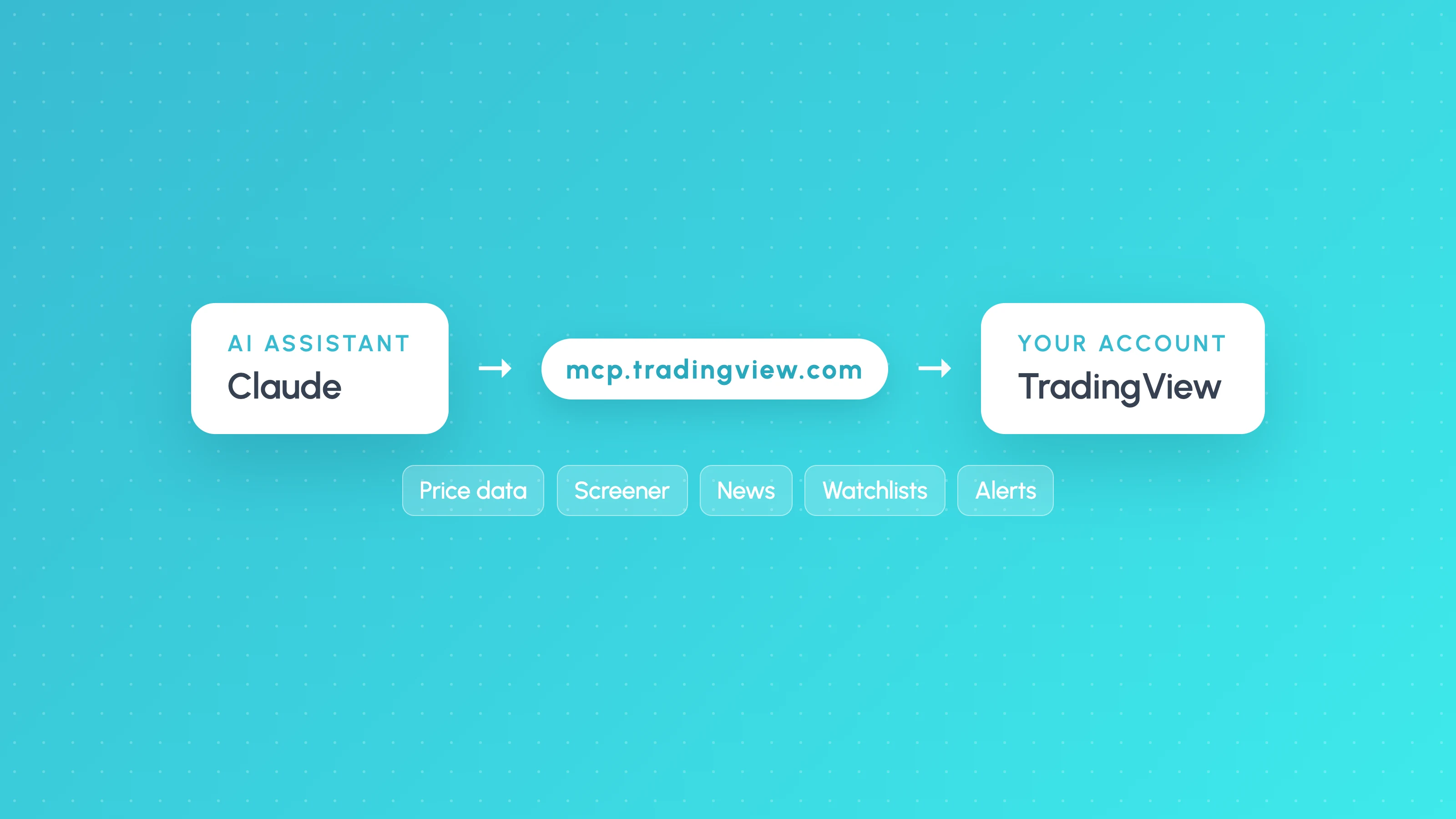
To connect Claude to TradingView, add https://mcp.tradingview.com/mcp as a custom connector in Claude (Settings, then Connectors, then Add custom connector) and sign in with a TradingView account on the Essential plan or above. That is TradingView's official MCP server, released in public beta on 16 September 2026, and it gives Claude your watchlists, alerts, price history, the screener, news and fundamentals.
Many guides written before September still say there is no official server and point you to community bridges instead. Both options exist now, and they do different jobs. This guide covers the official setup step by step, when a community bridge makes sense, and the one thing neither of them does for algo traders: tell you whether your strategy actually works.
Quick setup commands
If you use a terminal assistant, these are the commands from TradingView's MCP docs. You still need an Essential plan or above.
Claude Code:
claude mcp add --transport http mcp-tradingview https://mcp.tradingview.com/mcpThen run /mcp inside Claude Code and sign in to TradingView in your browser.
Codex CLI:
codex mcp add tradingview --url https://mcp.tradingview.com/mcpThen approve access to your TradingView account in the browser and start a new Codex task. If the browser doesn't open, codex mcp login tradingview starts the sign-in again (OpenAI's Codex MCP docs).
For the Claude apps, ChatGPT and other assistants, follow the steps below.
What you need before you start
- A paid TradingView plan. TradingView's MCP documentation says access is included in Essential and above, and that trial plans do not include it.
- An MCP-capable assistant. Claude (web, desktop and mobile apps), Claude Code, ChatGPT and Codex, Grok, Perplexity and Cursor are all listed in TradingView's docs.
- No API key. Authentication is OAuth 2.1, so you sign in with your normal TradingView login and approve access.
Connect Claude (web, desktop and mobile)
- In Claude, open Settings, then Connectors.
- Click Add custom connector, paste
https://mcp.tradingview.com/mcpand click Add. - Sign in to TradingView in the window that opens and approve access.
- Start a new chat and ask something that needs your account, such as "List my TradingView watchlists".
A connector you add once works across claude.ai and the desktop and mobile apps, according to TradingView's docs.
Connect Claude Code
Run this in your terminal:
claude mcp add --transport http mcp-tradingview https://mcp.tradingview.com/mcpThen run /mcp inside Claude Code and finish the sign-in in your browser. This is the most useful setup if you work on Pine Script or analysis code, because Claude Code can pull price history straight into a script without CSV exports or API keys.
Connect ChatGPT, Codex and other assistants
The server URL is the same everywhere. TradingView's docs give these routes as of October 2026 (menu names change often, so check the docs if yours differ):
| Assistant | Where to add it |
|---|---|
| ChatGPT and Codex (app) | Settings, Plugins, Add, MCPs, Add MCP Server. Type: Streamable HTTP. Then Authenticate. |
| Codex (terminal) | codex mcp add tradingview --url https://mcp.tradingview.com/mcp |
| Grok | Plugins, New Connector, Custom |
| Perplexity | Account settings, Connectors, Custom connector. Authentication: OAuth. Transport: Streamable HTTP. |
| Cursor | Customize, MCPs, New MCP Server, with "type": "http" in mcp.json |
Any other client that supports MCP over streamable HTTP with OAuth 2.1 should work with the same URL.
What the official server can do
TradingView lists 35 tools in the beta. In plain terms, Claude can:
- Read market data: up to 5,000 OHLCV bars per request, economic data series and symbol search.
- Run the screener: filter and sort with up to 1,000 rows, or pull screener columns for up to 50 symbols at once.
- Read news, fundamentals and filings: headlines and full stories, analyst forecasts, financial history, earnings call transcripts and filings.
- Check calendars: earnings, dividends and the economic calendar.
- Manage watchlists: create, rename, add to, remove from and delete them.
- Manage alerts: create simple price alerts, pause, restart and delete them, and read the alert log (up to 2,000 events).
The TradingView announcement suggests uses like a morning briefing on a symbol, screening in plain English and saving the results as a watchlist, and a post-mortem on alerts that fired.
What it can't do (and why it matters for algo traders)
The beta has real limits, all from TradingView's own docs:
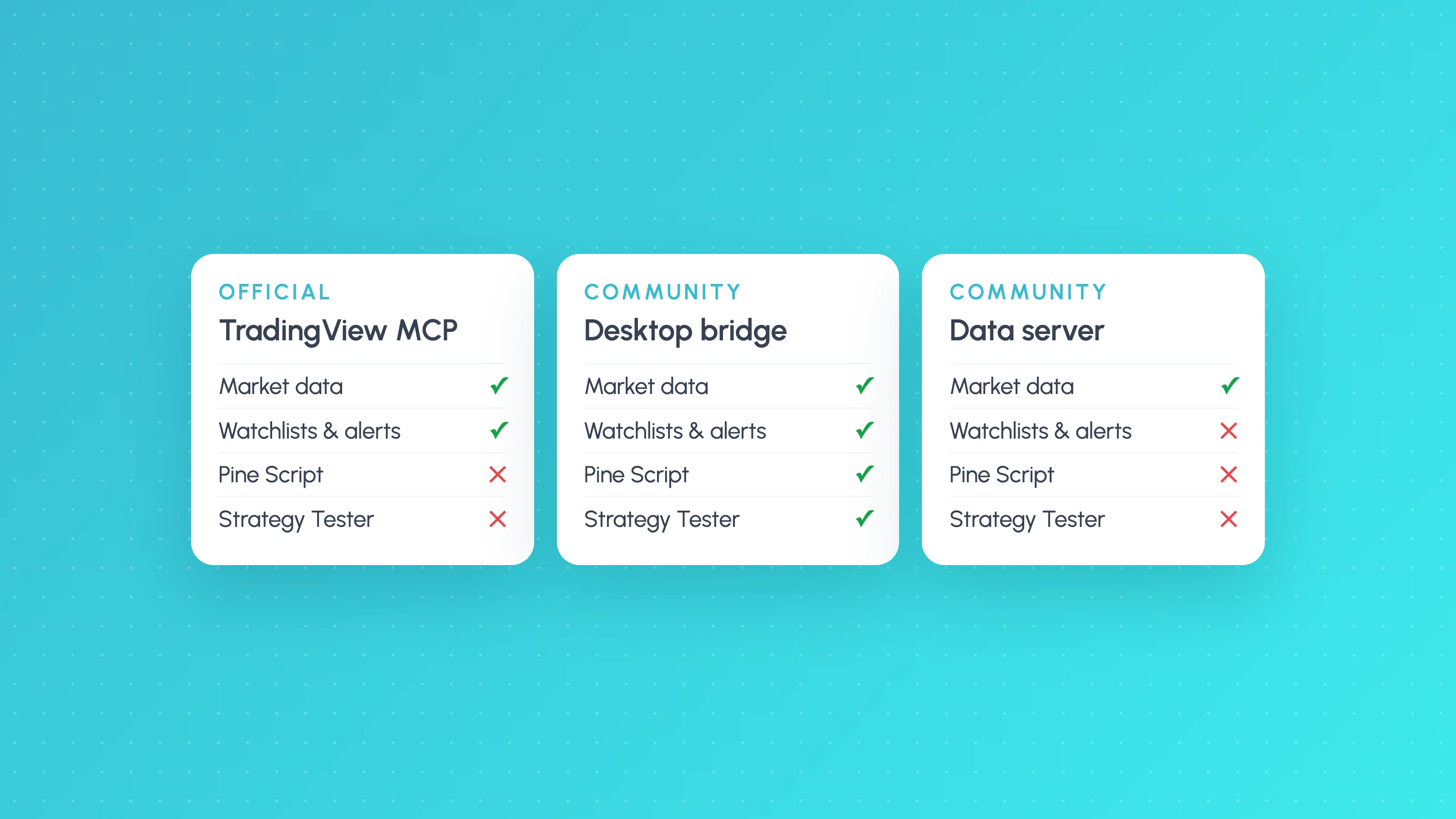
- No Pine Script and no Strategy Tester. None of the 35 tools reads, writes or compiles Pine Script, and none returns backtest results or the List of Trades.
- No orders or positions. Nothing places trades or reads broker balances.
- Alerts are price-only. Only single price conditions (cross, cross up, cross down, greater, less) are supported. Indicator alerts, multi-condition alerts and webhook alerts must still be created on tradingview.com, because the two-factor check isn't available for MCP connections yet.
- Delayed data and rate limits. Market data is delayed, tool calls are limited to about 100 per minute per user, and daily limits may apply during the beta.
So the official server is a research and monitoring assistant. If you run a strategy, the questions you care most about (is the edge real, which sessions lose money, would a tighter stop help) can't be answered from it, because it never sees your strategy's trades.
The community bridge: Pine Script access, with caveats
The most popular alternative is the open-source TradingView MCP Bridge (about 7,000 GitHub stars). Instead of TradingView's servers, it connects Claude Code to the TradingView Desktop app running on your own computer, through a debugging port (Chrome DevTools Protocol on localhost:9222). That lets it do what the official server can't: write and compile Pine Script, read compiler errors, change the chart's symbol and timeframe, take screenshots and read Strategy Tester data.
Know the trade-offs before you use it:
- Its README says it "accesses undocumented internal TradingView APIs" that can change or break without notice.
- It is not affiliated with TradingView, and you are responsible for staying within TradingView's terms of use.
- You have to launch TradingView Desktop with remote debugging turned on, which opens a local control port while it runs.
For a full comparison of the official server, this bridge and the data-only community servers, see TradingView MCP server: what it can and can't do.
Where testing your strategy fits
Claude can now write a Pine Script strategy in seconds, and with a bridge it can even run it. What it can't do on its own is tell you whether the result is a real edge or a lucky backtest. That needs the strategy's actual trades, broken down by the conditions they happened in.
The workflow that works:
- Write or refine the strategy with Claude (see Claude for Pine Script).
- Run it in TradingView's Strategy Tester with realistic commission and slippage.
- Export the List of Trades and break it down by session, weekday, time of day and volatility. A free Entry Analysis report does this from the export.
- Test the rule changes the breakdown suggests on those same trades, then re-backtest only the ones that hold up.
The full method is in How to test a strategy ChatGPT or Claude wrote.
Frequently asked questions
- Is there an official TradingView MCP server?
- Yes. TradingView released its official MCP server in public beta on 16 September 2026. The URL is
https://mcp.tradingview.com/mcpand it works with Claude, ChatGPT, Codex, Grok, Perplexity, Cursor and other MCP clients. - Is the TradingView MCP server free?
- It's included with paid plans. TradingView says it's available on Essential and above, and that trial plans don't include MCP access. There's no separate charge during the beta.
- Can Claude place trades on TradingView?
- No. The official server has no tools for orders, positions or broker balances. Its only write actions are on watchlists and price alerts.
- Can Claude read my Pine Script or backtest results through the official server?
- No. None of the official tools touch Pine Script or the Strategy Tester. Community bridges that drive TradingView Desktop can, but they rely on undocumented internal APIs.
- Why does Claude say it can't see my TradingView data?
- Check that you're on an Essential plan or above (trials don't include MCP), that you completed the sign-in and approved access, and that the connector is enabled in the chat you're using. In Claude Code, run
/mcpto see the connection status.
Keep reading
 AI and Pine Script
TradingView MCP Server: What It Can and Can't Do (2026)
TradingView's official MCP server compared with community MCP servers: the 35 tools, plan requirements, limits, Pine Script access and which one to use.
 AI and Pine Script
How to Test a Trading Strategy ChatGPT or Claude Wrote
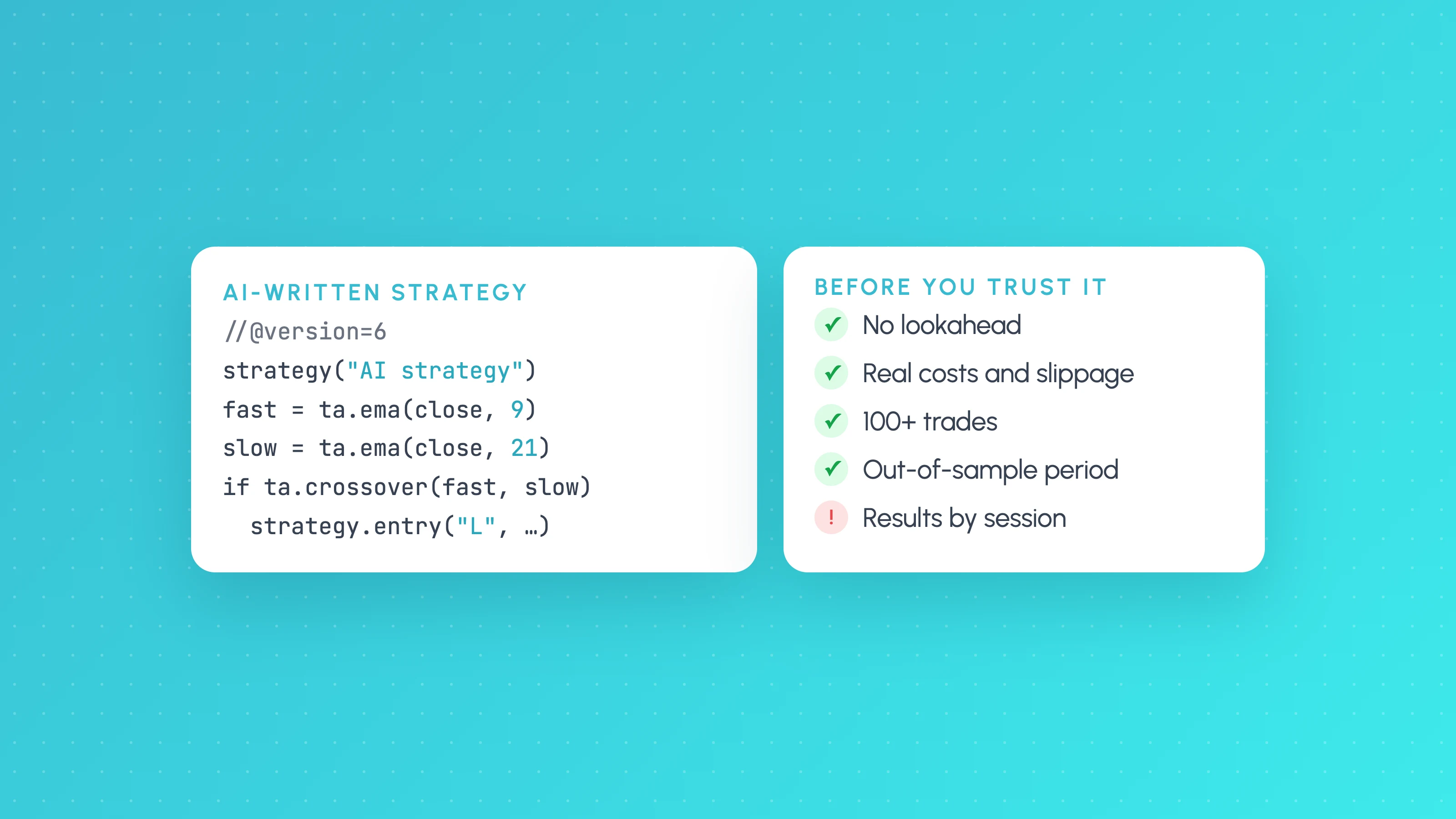
A step-by-step way to check an AI-written Pine Script strategy: catch lookahead and repainting, set realistic costs, test out of sample and by market condition.
 AI and Pine Script
Claude for Pine Script: Write, Debug and Test TradingView Strategies
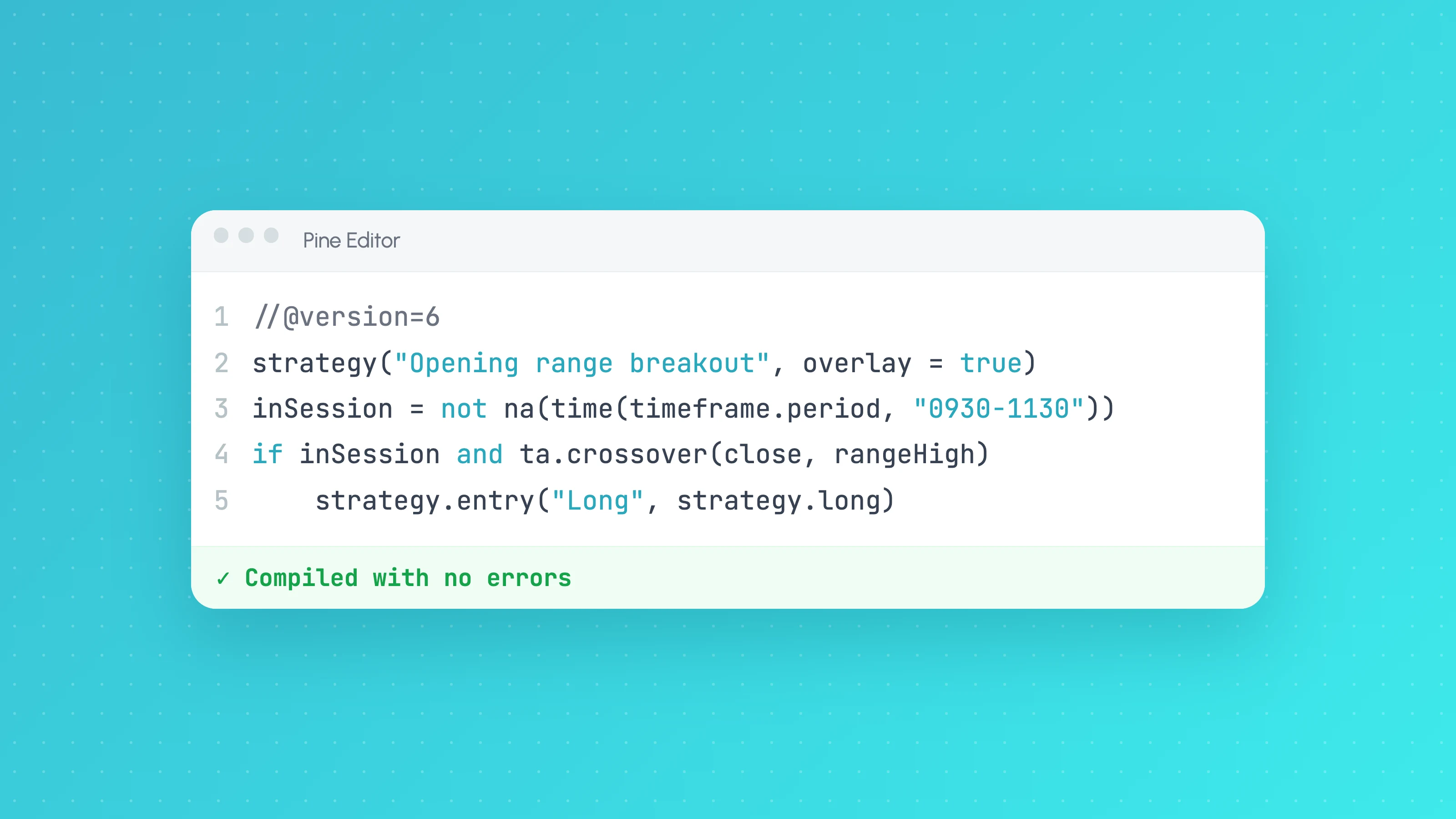
How to use Claude to write and debug Pine Script v6 strategies: prompts that work, a rules file for Claude Code, fixing compiler errors and testing the result.