

How to Automate a Pine Script Strategy (and Check TradingView Takes the Same Trades)
How to automate a Pine Script strategy: the alert and webhook route, its repainting and fill caveats, and how to check live trades match the backtest.
By Tessera Trades · Updated · 8 min read
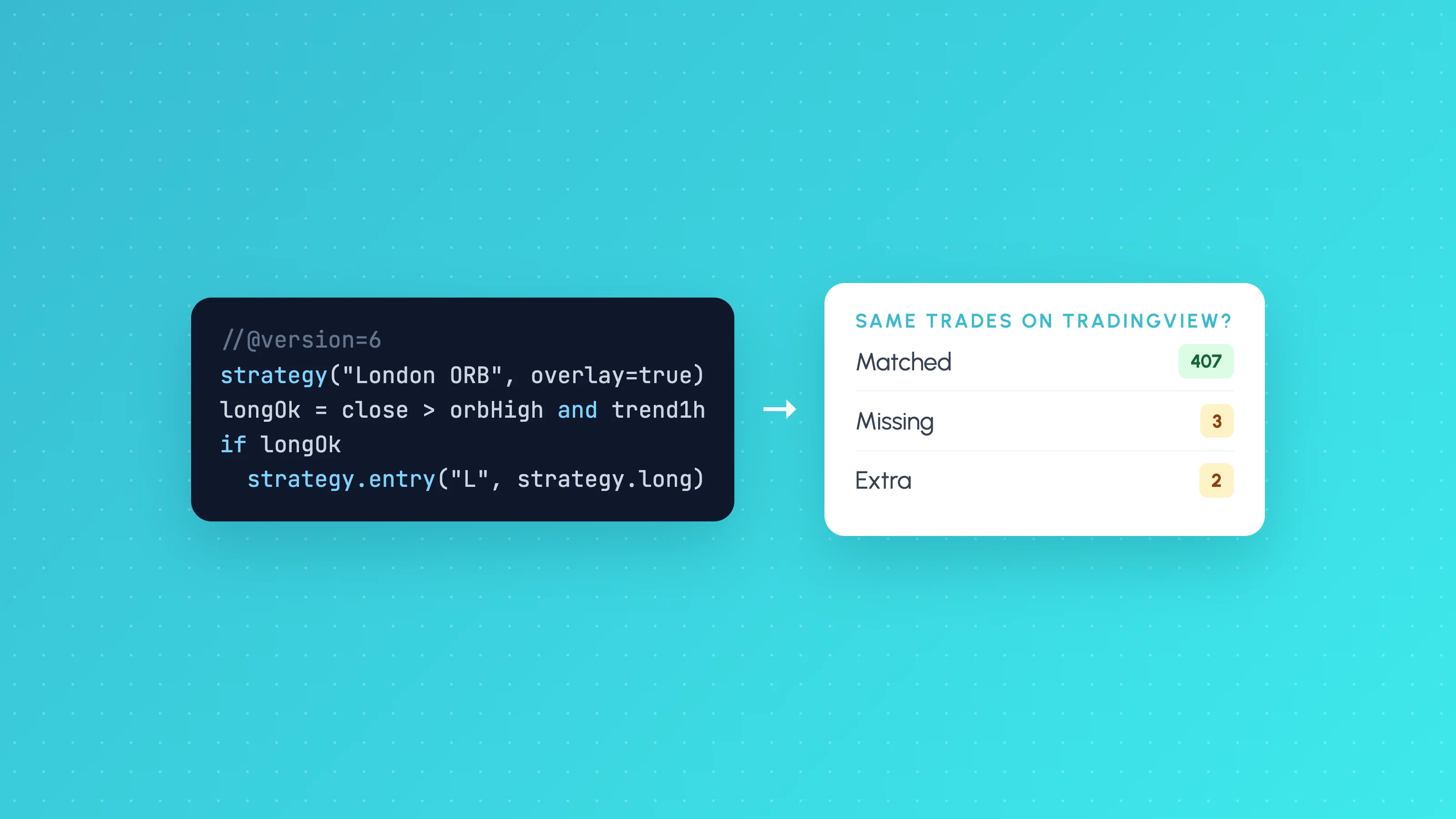
The usual way to automate a Pine Script strategy is to create a TradingView alert on it, have the alert send a webhook message when an order fills in the strategy, and point that webhook at a bridge service that places the order with your broker. Before you switch it on, make sure the script does not repaint, that alerts fire only on closed bars, and that you have compared live trades with the Strategy Tester's trades on the same days.
That last check is the one most people skip, and it is where most automated trading Pine Script setups go wrong. This guide covers the standard route as general information, the caveats that cause mismatches, and a second route where the backtest and the live bot run the same rules.
Automating a strategy does not make it profitable. Strategy Tester results and paper results are not future results, leveraged forex and CFDs are high risk, and the strategy, its settings and its risk are your responsibility.
Route 1: TradingView alerts and webhooks to a broker bridge
This is how most traders send a TradingView strategy to a broker. TradingView itself does not place the trade in this route. It sends a message, and something else acts on it.
- Write or convert the strategy to Pine Script v6. v6 is the current version, and TradingView says all new features will go only into the latest version. Older scripts keep working, but its conversion tool cannot convert every script automatically, so some need manual edits (TradingView blog: Pine Script v6 has landed).
- Add order messages. In a Pine v6 strategy,
strategy.entry(),strategy.exit(),strategy.close()andstrategy.order()accept analert_messageargument. You write the instruction your bridge expects there, for example the symbol, side and size in JSON. - Create the alert. On the chart, create an alert on the strategy and put the
{{strategy.order.alert_message}}placeholder in the alert's message field, so each order fill sends its own message (Pine Script docs: Alerts). - Turn on the webhook. Enter the bridge's URL. TradingView sends the message as an HTTP POST. Webhook alerts need two-factor authentication on your TradingView account, only ports 80 and 443 are accepted, and a request is cancelled if the receiving server takes longer than three seconds (TradingView: About webhooks). Check which TradingView plans include webhook alerts on TradingView's own pricing page.
- Configure the bridge. The bridge reads the message and places the order with your broker. It holds your broker connection, so read its security and permissions settings carefully.
All TradingView facts above are as of November 2026; TradingView changes its products, so check the linked pages.
TradingView's alert documentation makes two points that matter for automation. Alerts run on TradingView's servers around the clock, so your chart does not need to be open. And a running alert does not update when you change the script or its inputs: you have to delete the alert and create a new one. If you edit the strategy and forget this, you are trading the old version.
The caveats: why live trades differ from the Strategy Tester
Repainting
TradingView's documentation defines repainting as script behaviour that makes historical and realtime calculations or plots behave differently (Pine Script docs: Repainting). For automation this is the main danger: the Strategy Tester shows trades calculated on closed historical bars, while your alerts fire on live data.
The common causes, per the same page:
calc_on_every_tick = true. The strategy recalculates on every live price update, but historical bars were only calculated at the close. Orders can then differ between history and live, and the backtest no longer represents what the live version does.request.security()with lookahead. Usinglookahead = barmerge.lookahead_onwithout offsetting the value by[1]pulls future data into historical bars. The backtest looks excellent and cannot be reproduced live.- Signals on unconfirmed bars. A condition that is true mid-candle and false at the close can trigger an alert for a trade the backtest never took. Requiring
barstate.isconfirmed, or simply leaving the default of calculating at bar close, avoids this at the cost of a later signal.
Fills
The Strategy Tester's broker emulator fills orders using the chart's data and makes assumptions about the path inside each candle. If a bar's open is closer to its high than its low, for example, it assumes price went open, high, low, close (Pine Script docs: Strategies). Real price may have taken the other path. When a stop and target sit inside the same candle, that assumption decides which one counts. Bar magnifier, which TradingView now calls bar detalization, uses lower-timeframe data to reduce this; see TradingView bar detalization.
On top of that, live orders carry spread, slippage and commission that may differ from what you set in the strategy properties, and a market order sent after an alert arrives fills at whatever price is available then. A breakout strategy that the Strategy Tester fills exactly at the level will usually fill a little worse live. Slippage in algo trading explains how to estimate it.
Delivery
Each link in the chain can fail. A webhook can time out, a bridge can be down, a broker can reject the order. TradingView shows a webhook status in the alert log, but you need your own check that every expected trade happened.
How to check TradingView takes the same trades
Whichever route you use, run this check before trusting an automated strategy.
- Paper or demo first. Run the automation on a demo account for a period that gives you at least 20 to 30 trades. How long to paper trade a strategy covers timing.
- Export both trade lists. Export the Strategy Tester's list of trades for the same period, and your broker's trade history. See how to export TradingView Strategy Tester results.
- Match trade by trade. For each Strategy Tester trade, find the live one. Count three groups: matched, missing (in the tester, not live) and extra (live, not in the tester).
- Compare prices on matched trades. Work out the average entry difference in pips and as a fraction of the stop.
A hypothetical worked example. Over four weeks the Strategy Tester shows 30 trades. You find 26 matches, 4 missing and 2 extra. The 4 missing trades usually point to delivery failures or a session or time zone mismatch. The 2 extra trades almost always mean a repainting signal. On the 26 matched trades, live entries were on average 0.6 pips worse. With an average stop of 15 pips, that is 0.6 ÷ 15 = 0.04R per trade. If the backtest's expectancy is 0.10R, slippage alone takes 40% of it.
Any extra trades mean you should stop and fix the script before going further. Missing trades and slippage tell you how far to discount the backtest. If the Pine strategy came from an AI assistant, also run it through how to test an AI-generated strategy.
Route 2: build once, export Pine v6 and run the same rules live
The alert route has a structural weakness: the backtest runs in one place, and the live trading depends on alerts, a bridge and a broker that never saw the backtest. Tessera takes a different approach, with the backtest and the live bot sharing the same rules.
Build and test in Strategy Lab. You build the strategy without code in Strategy Lab, by describing it to TES, the AI strategy coach, using the recipe composer, or writing custom rules. Every backtest includes costs and runs the validation checks automatically, including an unseen period. You choose how a candle that hits both stop and target is handled: the TradingView bar path, TradingView Bar Magnifier, or stop-first, so you can match TradingView's assumptions or be stricter.
Export Pine Script v6, if you want it on TradingView. On paid plans, Strategy Lab exports the same recipe, bar for bar, as a Pine v6 Strategy script and an Indicator script. The Strategy script draws a self-check table on your TradingView chart showing matched, missing and extra trades against Strategy Lab, which is the trade-by-trade check above, done for you. If something cannot be translated, the export refuses rather than guessing. Long-and-short strategies may export as two scripts.
Run it on Launchpad. Launchpad runs the Strategy Lab strategy itself on cTrader or Liquid Brokers, on demo or live accounts. Within seconds of each candle closing, it re-runs the strategy's rules, the same code as the backtest, including break-even, trailing, partial and time exits. You can run it on Paper, in Copilot mode where you approve each signal, or on Autopilot inside your limits. Orders go as market orders with the stop loss and take profit attached at the broker.
To be plain about the limits: TradingView alerts cannot trigger Launchpad, and Launchpad does not run Pine scripts you wrote elsewhere. The Pine export is for seeing and checking the strategy on TradingView; the live trading runs from Strategy Lab's rules. Launchpad trades on cTrader and Liquid Brokers only, not MetaTrader or other platforms. It is available on Standard, Plus and Pro plans; see pricing.
Once it is running, Launchpad compares live results with the backtest's expected range and gives a verdict of within, above or below, so a drift like the slippage in the example above shows up without a spreadsheet.
For platforms that backtest and automate without Pine Script, see TradingView alternatives for backtesting and automation.
Frequently asked questions
- How do I automate a Pine Script strategy?
- Create an alert on the strategy, use the
alert_messageargument in its order functions and the{{strategy.order.alert_message}}placeholder in the alert, and send it by webhook to a bridge service that places orders with your broker. Test on a demo account and compare live trades with the Strategy Tester before using real money. - Can TradingView place trades automatically?
- In the webhook route, TradingView alerts only send messages, and a separate bridge service places the order with your broker. However you connect it, check that the trades match what the Strategy Tester showed.
- Why do my live trades not match the TradingView backtest?
- The usual causes are repainting (signals on unfinished candles,
calc_on_every_tick, or lookahead inrequest.security()), the broker emulator's assumptions about price movement inside a candle, slippage and spread, and alerts that failed or were not recreated after you edited the script. - Do I need Pine Script v6 to automate a strategy?
- Older versions still run, but v6 is the current version and TradingView says new features go only into the latest one. If you are starting a new strategy or maintaining one long term, v6 is the sensible choice. TradingView's converter handles many scripts, but some need manual edits.
- Can I run a TradingView strategy on cTrader?
- Not directly from TradingView alerts through Tessera, because Launchpad does not accept TradingView alerts. You can rebuild the strategy in Strategy Lab, check it against TradingView with the Pine v6 export's self-check table, then run it on cTrader with Launchpad.
Keep reading
 AI and Pine Script
Claude for Pine Script: Write, Debug and Test TradingView Strategies
How to use Claude to write and debug Pine Script v6 strategies: prompts that work, a rules file for Claude Code, fixing compiler errors and testing the result.
 TradingView backtests
TradingView Strategy Tester Settings Changed: Bar Detalization, Limit Fills and Order Delay Explained
TradingView bar detalization replaced Bar Magnifier in July 2026. What it, Limit order execution and Order execution delay do to fills and results.
 AI and Pine Script
How to Test a Trading Strategy ChatGPT or Claude Wrote
A step-by-step way to check an AI-written Pine Script strategy: catch lookahead and repainting, set realistic costs, test out of sample and by market condition.