How to Build a cTrader Trading Bot Without Coding
Build a cTrader trading bot without coding: what cTrader Algo and cBots need, then a no-code route from strategy to backtest, demo account and live trading.
By Tessera Trades · Updated · 10 min read
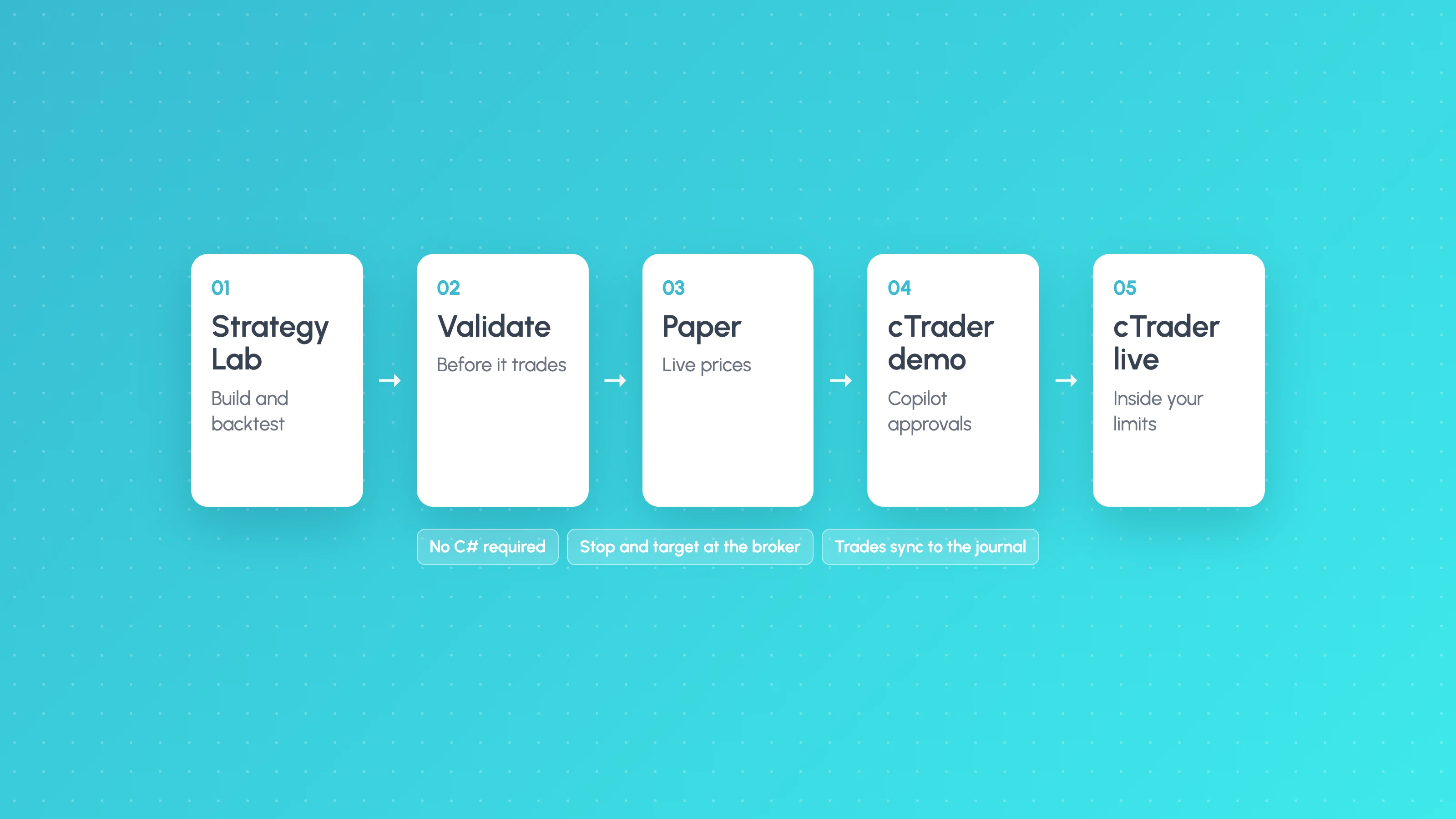
To build a cTrader trading bot without coding, you have two routes: use a no-code builder that generates a cBot (cTrader's bot format, written in C# or Python) for you, or use a platform that builds and runs the strategy itself and sends orders to your cTrader account. Either way, the steps that matter are the same: define the rules precisely, backtest with realistic costs, check the result holds up on data it has not seen, then run it on a cTrader demo account before any live money.
This guide explains what cTrader's own bot system needs, where coding comes in, and how the no-code route works in practice.
What is a cTrader bot?
cTrader is a trading platform offered by many forex and CFD brokers. Its automation side is called cTrader Algo, and its trading bots are called cBots.
cTrader's help centre describes a cBot as code, written in C# or Python against the cTrader Algo API. The basic structure is a set of methods that run at set moments:
| Method (C#) | Method (Python) | When it runs |
|---|---|---|
| OnStart | on_start | When the bot starts |
| OnTick | on_tick | On every price change |
| OnBar | on_bar_closed | When a new candle forms |
| OnStop | on_stop | When the bot stops |
You write your entry and exit logic inside these methods, build the code (which checks it compiles), then backtest it in cTrader's desktop app and run it on a chart.
What cTrader automated trading normally needs
Building a cBot yourself means handling all of this:
- The strategy logic in code. Indicators, conditions, order placement, stop and target logic, and position sizing. cTrader provides code samples, but you adapt them yourself.
- Trade management. Break-even moves, trailing stops, partial closes and time exits are all extra code.
- Risk controls. A daily loss limit, a maximum number of trades and trading hours are not built in to a cBot unless you write them.
- Backtesting and checking. cTrader's backtester tells you how the code performed. Whether the result is overfit, depends on a few trades or survives higher costs is up to you to check.
- Somewhere to run it. A cBot runs on your computer while cTrader is open, on a VPS, or in cTrader's cloud. cTrader's cloud features page says cloud execution is free, with up to 10 concurrent instances on live accounts, and 1 instance on demo accounts that stops after 7 days and can be restarted. Limits can vary by broker.
- Monitoring. Knowing when the bot has stopped, errored or started behaving differently from the backtest.
For a trader who is not a programmer, step 1 is the wall, but steps 2 to 6 are where most bots fail.
The two no-code routes
Route 1: a builder that generates a cBot
Several third-party tools let you set rules in a form or with drag-and-drop blocks, then produce a cBot for you to import into cTrader. You then backtest and run it like any other cBot.
This keeps everything inside cTrader. The trade-off is that you still need to run, host and monitor the cBot yourself, and any check on whether the backtest is trustworthy is still on you. Some builders give you the source code; others keep it protected. Check before you rely on one.
Route 2: a platform that runs the strategy for you
The other route is to build and test the strategy on a separate platform, which then runs it and sends orders to your cTrader account through cTrader's own sign-in. There is no cBot at all. Your trades appear in your cTrader account like any other trades.
This is how Tessera works. The rest of this guide uses it as the example, so to be clear about what it does and does not do: Tessera runs your strategy itself and places orders on your cTrader account. It does not generate cBot C# or Python code, and you cannot download the strategy as a cBot.
| cBot you code | cBot from a builder | Tessera Strategy Lab and Launchpad | |
|---|---|---|---|
| Coding needed | Yes, C# or Python | No | No |
| Where the bot runs | Your PC, VPS or cTrader cloud | Your PC, VPS or cTrader cloud | Tessera, sending orders to cTrader |
| Backtest validation | Your own checks | Your own checks | Automatic checks on every backtest |
| You own source code | Yes | Depends on the builder | No cBot code is produced |
| Approve each trade | Only if you code it | Depends on the builder | Yes, in Copilot mode |
Step by step: a cTrader bot without code
Step 1: Build the strategy in Strategy Lab
In Strategy Lab, available on every plan including Free, you can build a strategy three ways and mix them:
- Describe it to TES, the AI strategy coach, in your own words, with up to 2 chart screenshots. TES builds the strategy and runs the backtest. It proposes every change and you confirm it.
- Use the recipe composer: a setup, optional filters, sessions, entry style and exits, each on its own timeframe. There are 12 starter packs, such as a session first-candle opening range breakout, and a plain-English "If/Then" readout shows how the recipe is read.
- Write custom rules in a rule language with 21 indicators.
Setups include candlestick and chart patterns, ICT concepts like fair value gaps and order blocks, prior day and week levels, divergences, moving average crosses and breakouts. Exits cover stops at candles, levels or swings, targets in R, ATR, pips or levels, break-even, trailing stops, up to 3 partials and time exits. Our guide to building an algo trading strategy covers how to design one.
Step 2: Backtest with realistic costs
Set commission, spread, slippage and swap to match your cTrader broker's account. Backtests that ignore costs are the most common reason a bot looks good and then disappoints. See slippage in algo trading for how much it can matter.
Step 3: Check that the result holds up
Every Strategy Lab backtest automatically runs checks that a cBot backtest leaves to you:
- the last 30% of the data held out as an unseen period, with a verdict of held up, weaker, failed or too few trades;
- first half against second half, and the last 12 months;
- what happens if you remove the best trades, and if costs rise;
- a warning if you have tested many variants.
The robustness report adds a Monte Carlo test, cost stress, a check that re-runs the strategy on slightly noisy copies of the data, and a test on other markets. If a strategy fails these, it is better to find out here than on a live account. See is my backtest overfit? and out-of-sample testing.
Step 4: Connect a cTrader demo account to Launchpad
Launchpad, on the Standard, Plus and Pro plans, runs Strategy Lab strategies as bots. You connect by signing in with cTrader, and you can choose a demo or a live account. Start with demo.
Step 5: Run it in Paper, then Copilot, then Autopilot
Launchpad has three modes. Move through them in order:
- Paper. Live prices, nothing sent to the broker, with fills using the backtest's costs. This shows whether the bot behaves as the backtest says it should.
- Copilot. Each signal comes to you, in the app or by Telegram buttons with a chart, and you approve or reject it. Approved trades go to your cTrader demo account.
- Autopilot. The bot trades inside the limits you set.
How long to stay in each mode depends on how often the strategy trades. Our guide on how long to paper trade a strategy helps you decide.
Only move from the demo account to a live cTrader account once the bot has behaved as expected on demo, and at a size you can afford to lose.
How the bot trades on cTrader
Within seconds of each candle closing, Launchpad re-runs the strategy's rules, using the same code as the backtest. Break-even, trailing stops, partials and time exits run live as they did in the backtest.
Orders are market orders, with the stop loss and take profit attached at the broker. If the strategy uses a limit or stop entry, Launchpad sends a market order when the level is reached; it does not leave a pending order sitting in your cTrader account. So expect fills on those entries to differ a little from the backtest's.
Risk limits are set when you deploy and checked when the signal fires and again before the order is sent:
| Control | Default or range |
|---|---|
| Risk per trade | 0.5% by default, up to 5%, or a fixed lot |
| Maximum position size | Required |
| Daily loss limit | 3% by default |
| Maximum open trades and trades per day | You set them |
| Trading hours | You set them |
You can pause or stop a bot, or use the kill switch to stop everything. Every setting change is logged.
Worked example: sizing on a demo account
A hypothetical example with round numbers. Your cTrader demo account has a $10,000 balance and you keep the default 0.5% risk per trade. Each trade risks $50.
If the strategy's longest losing streak in the backtest is 9 trades, that streak costs about $450, or 4.5% of the account. A day with 4 losing trades costs $200, or 2%, which stays inside the default 3% daily loss limit. If you raised risk to 2%, the daily limit would only block new trades once the day's losses passed 3%. At 2% a trade, that happens after the second loss, when the account is already 4% down for the day.
Size from your strategy's worst plausible streak, not its average, and treat backtest and paper results as a guide, not a forecast.
Monitoring the bot against the backtest
Launchpad compares live results with the backtest on an expectation curve with a 95% band and a verdict of within, above or below. You also get a 24-hour uptime strip, a "What it sees" chart and a live log. Telegram sends signals, fills, closes with R and P&L, safety alerts and a daily summary, and accepts /status, /pause and /kill commands. You can run paper alongside live, or two versions side by side.
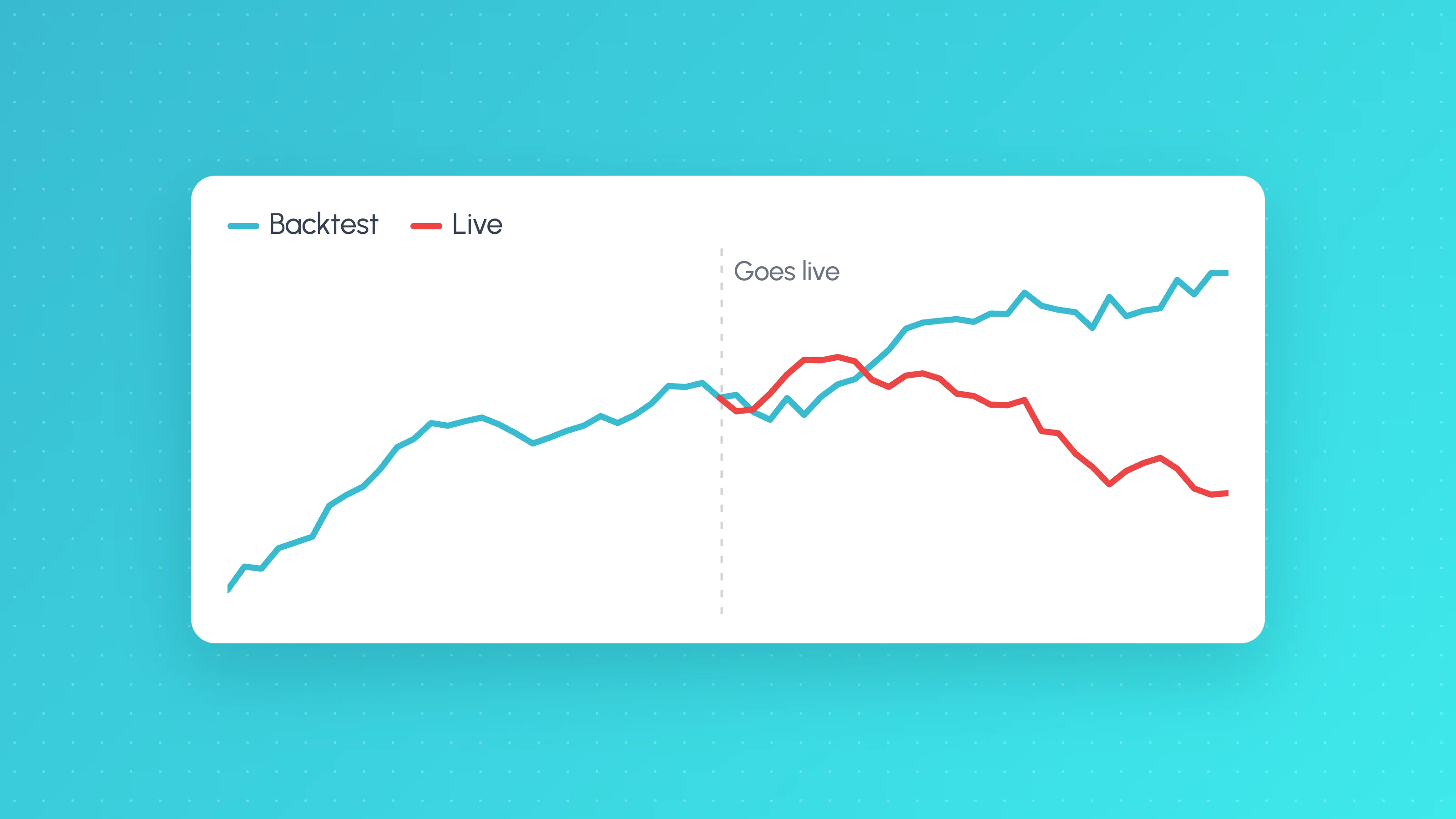
Closed trades are reconciled with your cTrader account and logged in your trade log, where reports run on them. See backtest vs live for why some gap between the two is normal.
Can you use this on a cTrader prop firm account?
Some prop firms offer cTrader accounts; FTMO, for example, lists cTrader among its platforms as of November 2026. Whether a given bot or connection is allowed is the firm's rule, not Tessera's, so read the firm's terms on automation and third-party tools and ask support in writing first. Launchpad's risk controls are your own limits; it does not apply prop firm rules to a live bot.
To test whether a strategy fits a firm's rules before you buy a challenge, use the prop firm challenge simulator in Strategy Lab, and read our guide to FTMO's algo trading rules.
Build and run it with Strategy Lab and Launchpad
If you trade on cTrader and do not want to write C#, Tessera covers the whole route in one place: build the strategy without code in Strategy Lab, check it with the automatic validation and robustness tests, then run it on your cTrader demo account with Launchpad, first in Paper, then Copilot, then Autopilot.
Strategy Lab is free to start with no card needed. Launchpad is on the Standard ($39 a month), Plus ($99) and Pro ($249) plans; see pricing. Launchpad also supports Liquid Brokers. Bot trading is not available through Tessera on MetaTrader or other platforms. See our cTrader page for more on the connection.
Your strategy, your settings and your risk limits are your responsibility. Backtests and paper results are not future results, and trading leveraged CFDs and forex carries a high risk of losing money.
Frequently asked questions
- Can you make a cTrader bot without coding?
- Yes. You can use a no-code builder that generates a cBot to import into cTrader, or a platform such as Tessera that builds and runs the strategy itself and sends orders to your cTrader account. In both cases, backtest with realistic costs and run on a demo account first.
- What language are cTrader bots written in?
- cTrader's own bots, called cBots, are written in C# or Python using the cTrader Algo API. Tessera does not produce cBot code; it runs the strategy on its own servers and places trades through your cTrader login.
- Can I run a cTrader bot without keeping my computer on?
- With a cBot, you can use cTrader's cloud execution, which cTrader says is free, or a VPS. With Tessera's Launchpad, the strategy runs in Tessera rather than as a cBot in your cTrader app, and you can watch and control it from the app or Telegram.
- Is cTrader good for automated trading?
- cTrader has built-in support for automation through cTrader Algo, with C# and Python bots, backtesting and cloud execution. Whether automated trading works for you depends on the strategy, not the platform, so test it properly before going live.
- Should I test a cTrader bot on a demo account first?
- Yes. Run it on a cTrader demo account until it behaves as the backtest suggests, ideally first in paper mode and then with each trade approved by you. Moving to live money only after that keeps early mistakes cheap.
Keep reading
 TradingView backtests
Why Does My Strategy Work in Backtest but Not Live?
Why a TradingView strategy works in backtest but not live: costs, fill assumptions, repainting, gaps, data, alert delays and overfitting, with a check for each.
 TradingView backtests
Is My Backtest Overfit? A Practical Checklist for Traders
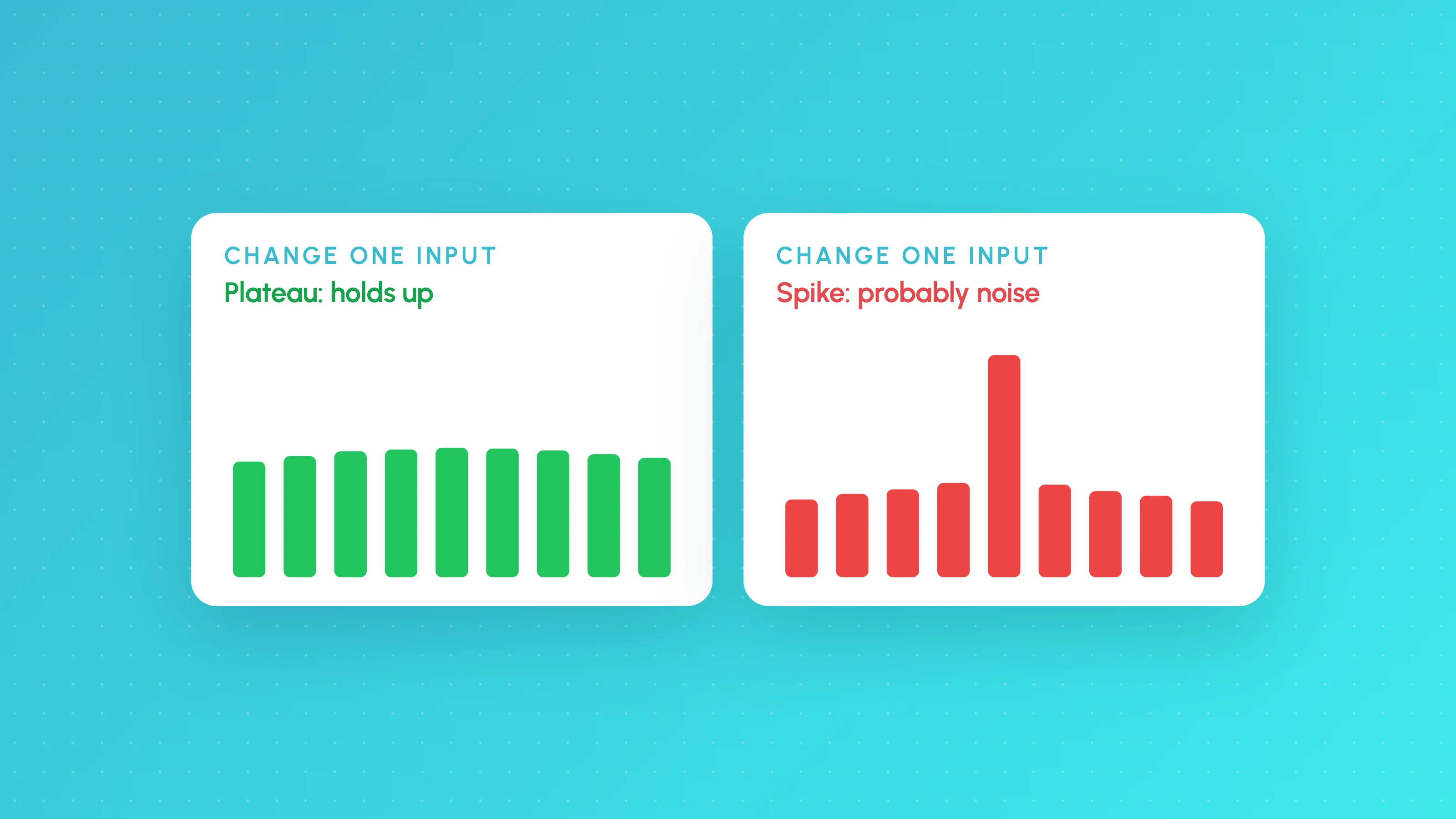
How to tell if a backtest is overfit: too-good metrics, thin samples, fragile inputs, useless filters, out-of-sample and walk-forward tests, plus a checklist.
 Trading metrics
How Much Slippage Should You Assume in a Backtest? (and How to Measure It on Live Fills)
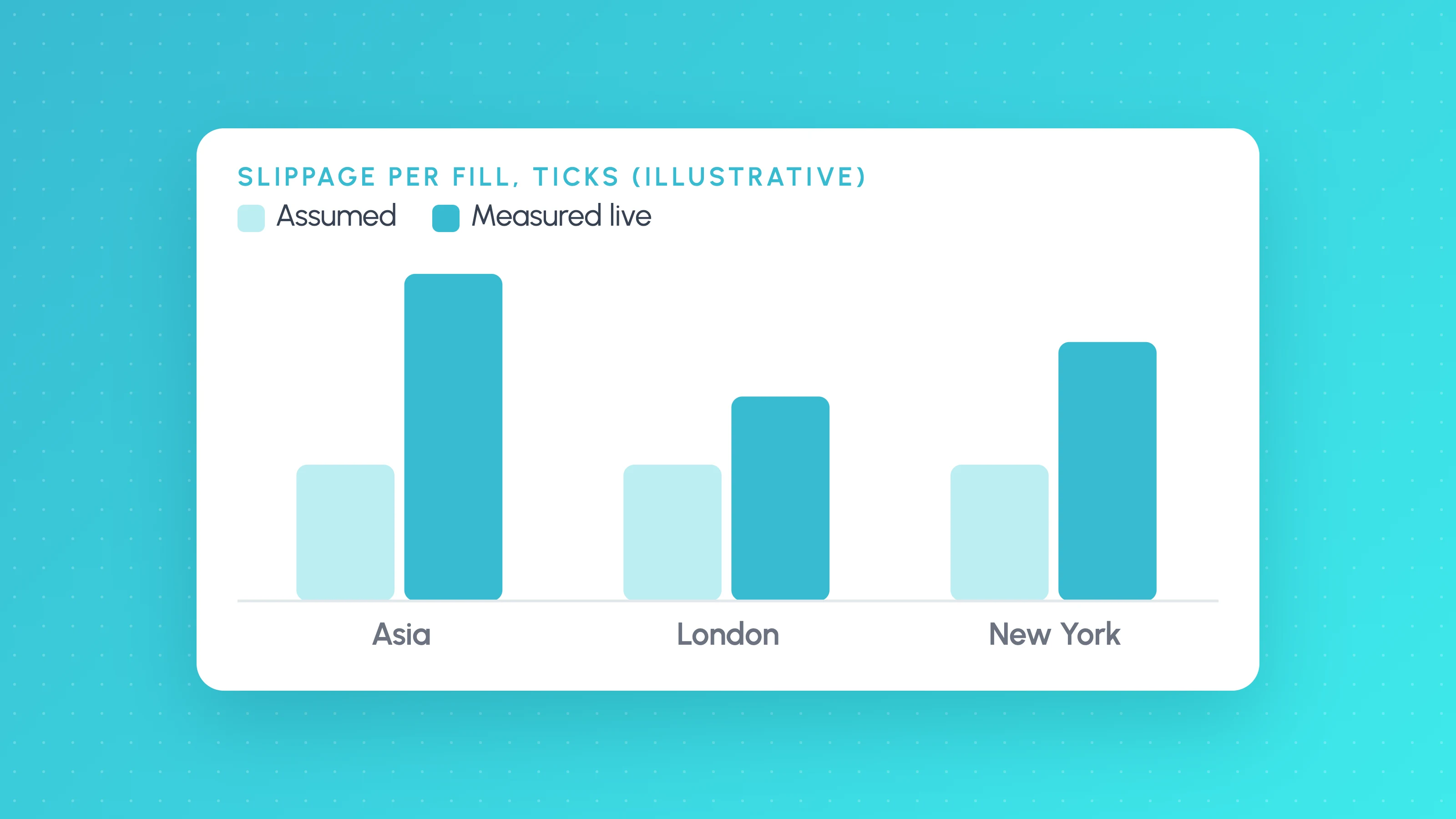
How much slippage in algo trading? Start at 1-2 ticks per side on liquid futures, more for stops and news, then measure real fills to replace the guess.