

Best Trading Journal for TradingView (2026): Live Trades, Paper Trades and Strategy Tester Results
The best trading journal for TradingView depends on what you log: broker fills, paper trades or Strategy Tester results. See which journals import each.
By Tessera Trades · Updated · 11 min read
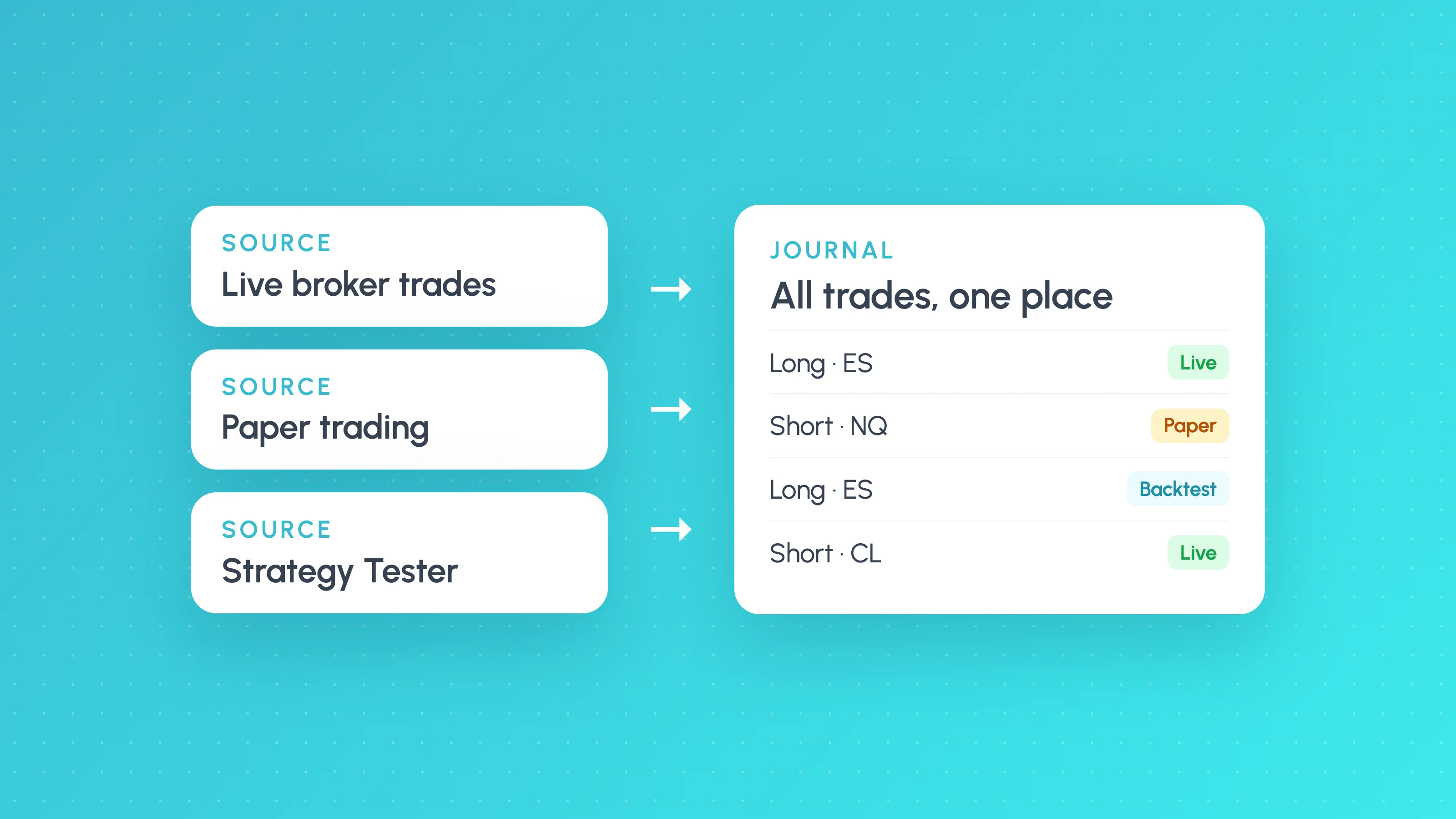
TradingView has no built-in trading journal, so the best trading journal for TradingView is the one that reads the kind of trades you want to log: TradeZella, TradesViz and Edgewonk import TradingView paper trades, TradesViz also reads Strategy Tester XLSX reports, and Tessera is built to analyse Strategy Tester trade lists by market condition. For live trades placed through a broker connected to TradingView, import from the broker itself, because that is where the fills and fees are recorded.
Most "best journal for TradingView" lists treat TradingView as one data source. It is really three: real orders routed to a broker, simulated paper trades, and backtest results from a Pine Script strategy. Each comes out of TradingView as a different file, and each journal supports a different subset. This guide explains the three exports, shows which journals read which (with links to each vendor's own documentation, checked in October 2026), and covers the free options.
Does TradingView have a trading journal?
No. StockBrokers.com's TradingView review, dated 19 August 2026, states plainly that TradingView doesn't have a built-in trading journal. What it does have are pieces you can journal from:
- The trading panel. When you trade through a connected broker or the paper trading account, the panel at the bottom of the chart keeps order history, and TradingView's help page on downloading trading data explains that each tab can be saved as a CSV file separately.
- Portfolios. A TradingView blog post describes an "Import from paper trading" option on the Portfolios page that pulls filled paper trades (symbol, side, quantity, fill price, commission and timestamp) into a portfolio. The post says it works like a CSV import, not a live sync, so you re-run it to pick up new trades. Portfolios show holdings and performance, not trade-by-trade review.
- The strategy report. For Pine Script strategies, the Strategy Tester (now called the strategy report in TradingView's documentation) lists every simulated trade and can be exported.
None of these gives you tags, notes, setups or breakdowns by condition, which is why people look for a separate journal.
The three kinds of TradingView trade data
| What you want to journal | Where it lives | What you can export |
|---|---|---|
| Live trades placed through a connected broker | Your broker account (TradingView is the front end) | Trading panel order history CSV, or the broker's own statement or API |
| Paper trades | TradingView's paper trading account | Trading panel order history or fills CSV |
| Strategy Tester results | The strategy report of a Pine Script strategy | List of Trades as CSV, or the full report as XLSX |
1. Live broker trades
TradingView lets you connect brokers to the chart. For example, its support pages describe connecting Interactive Brokers from the Trading Panel (with a choice of live or paper mode at login) and placing OANDA orders by right-clicking the chart or from the trading panel. The orders are executed and recorded by the broker. That matters for journalling: the broker's own statement or API is the complete record, with commissions, financing and partial fills, while the trading panel export is a view of it.
So for live trades, the practical question is not "does this journal support TradingView?" but "does this journal support my broker?" If it syncs with your broker directly, you get every trade whether you placed it from TradingView, the broker's own platform or a phone app.
2. Paper trades
TradingView's paper trading account exists only inside TradingView, so there is no broker statement to fall back on. You export the order history (or fills) CSV from the trading panel, or use a tool that reads the panel for you. TradeZella's TradingView import guide gives the steps: open Paper Trading at the bottom of the chart, go to Order History, enable every column in Column setup, then use the Download data icon and choose Order history. Enabling every column matters, because the importer expects the full set of fields in the file.
3. Strategy Tester results
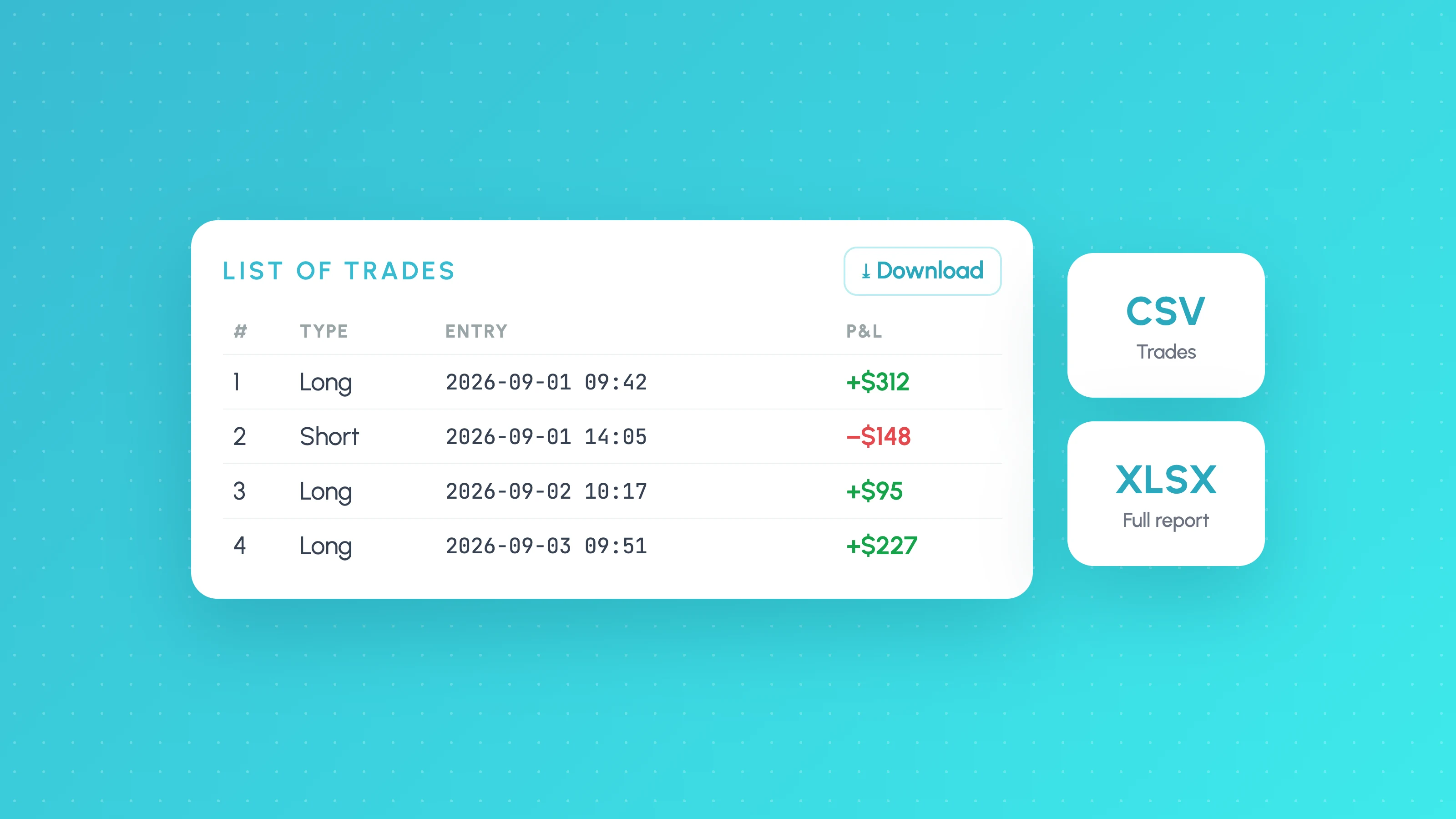
This is the export that the fewest journals read: of the five checked here, only TradesViz and Tessera document a Strategy Tester import. The trades come from a Pine Script strategy running on historical data, not from an account. TradingView's strategies documentation describes two exports from the strategy report: a Download icon on the Trades tab that saves the List of Trades as a CSV file with all available columns, and a "Download data as XLSX" option in the report's menu that covers the report's data. Our guide to exporting TradingView Strategy Tester results covers where the buttons are, which plans include export and what each column means.
Backtest trades are simulated fills. Keep them in a separate account or workspace from real trades in any journal, or your statistics will mix the two.
Trading journals that connect to TradingView, and what each imports
As of 2026-10, based on each vendor's own documentation:
| Journal | Live trades via TradingView | TradingView paper trades | Strategy Tester results |
|---|---|---|---|
| TradeZella | Order History CSV from the Live Trading tab | Order History CSV upload | Not covered in its TradingView guide |
| TradesViz | Browser extension or History CSV | Browser extension or History CSV | XLSX backtest report upload |
| Edgewonk | Through your broker's statement, if supported | Listed as supported | Not listed |
| Tradervue | Broker sync or file import for supported brokers | Only by reformatting into its generic CSV | No TradingView-specific import found |
| Tessera | Live sync for IBKR, OANDA, cTrader, Binance and Liquid Brokers, or platform files and custom CSV | Order History CSV file import | List of Trades CSV, analysed by market condition |
| Spreadsheet | Any CSV | Any CSV | Any CSV |
The details behind each row:
TradeZella. Its TradingView integration page lists Auto Sync, File Upload and Manual as methods but documents only the CSV file upload, and the help article covers exports from both the Paper Trading and Live Trading tabs. One detail that trips people up: the guide says to select "Other" as the broker company when the file comes from TradingView paper trading, and to pick the right date format, because the wrong one fails the upload. Neither page mentions the Strategy Tester.
TradesViz. It has the widest TradingView coverage of the journals checked here. Its TradingView import page lists a browser-extension sync, a manual History CSV upload and, separately, "TradingView backtester file exports (XLSX)". For the XLSX, it asks you to select all columns before exporting and, if sheets are missing, to rename the file so it ends with the symbol (its example is TradingView-Backtest-Report-AAPL.xlsx). The extension guide says it reads executions from the History > Fills tab by web scraping, works for paper and real trading, is not endorsed by TradingView, and syncs only stocks on a free account.
Edgewonk. Its supported platforms list includes "Tradingview (Paper trading only)". For live trades you would import your broker's statement if Edgewonk supports that broker. Edgewonk also lets you attach TradingView chart screenshots by URL, which is useful for discretionary review but is not a trade import.
Tradervue. We found no TradingView-specific trade import in Tradervue's help centre. Its generic import format needs only Symbol, Quantity and Price columns (Date, Time and Side are optional but strongly recommended), so a paper-trading CSV can be reshaped to fit. For live trades, import from your broker.
Tessera. Tessera reads the Strategy Tester List of Trades CSV, and its brokers page also lists TradingView paper trading as a file import (Order History CSV). Neither is a live sync. For live accounts it syncs Interactive Brokers, OANDA, cTrader, Binance and Liquid Brokers, and imports files from MetaTrader 4 and 5, NinjaTrader, Tradovate and Hyperliquid. It is built for systematic traders rather than discretionary note-taking; more on that below.
A spreadsheet. Every export above is a CSV or XLSX, so Excel or Google Sheets reads all three. You give up automation and build the statistics yourself, but nothing is hidden from you.
Best for chart and paper traders
If you trade by hand on TradingView charts, mostly in the paper account, you want a journal that takes the paper Order History export without fuss and gives you tags, notes and screenshots. TradeZella, TradesViz and Edgewonk all document a paper-trading route. TradesViz's extension saves the export step but depends on scraping the page, so it can break when TradingView changes its layout; the CSV route is slower but more predictable.
When you move to a live broker, switch the journal's source to the broker rather than the TradingView panel, so that fees and fills match your statements.
Best for Pine Script strategy users
If you write or run Pine Script strategies, the trades you most need to analyse are in the Strategy Tester, and most of the journals checked here don't read them. Your options as of 2026-10:
- TradesViz imports the strategy report's XLSX export into its journal, so you can apply its general analytics to backtest trades.
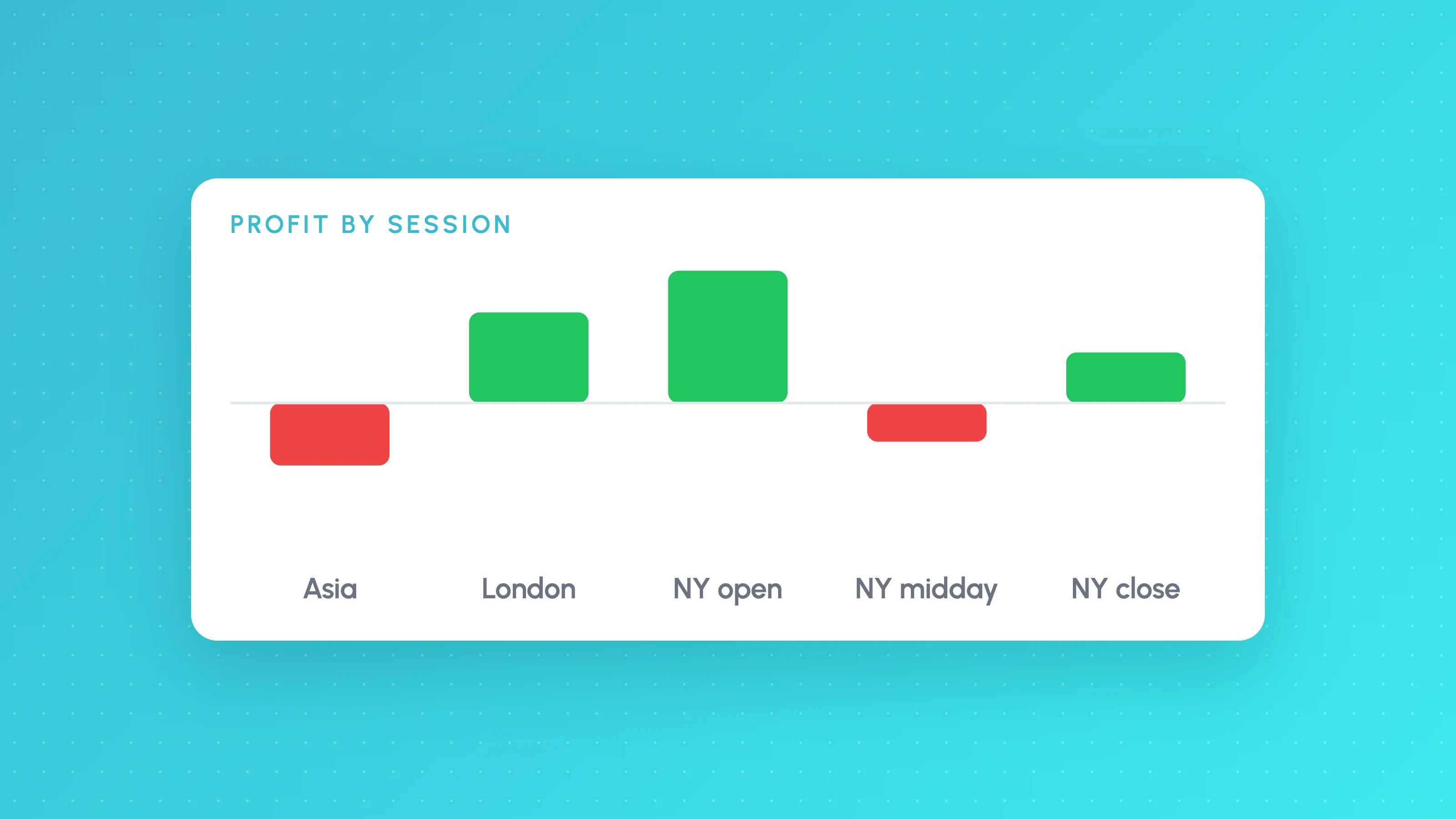
- Tessera imports the List of Trades CSV and breaks the strategy's results down by session, weekday, time of day, volatility and symbol, with the trade count behind each slice. Its simulator replays stop, target and filter changes on real candles for the trades the strategy already took, and rules that hold up can be exported into a new copy of your Pine Script. The simulator does not generate new fills. Separately, Tessera's Strategy Lab is a no-code backtester for building and testing new strategies.
- A spreadsheet with SUMIFS by session or hour, as shown in our guide to analysing a TradingView backtest by session, weekday and hour.
Whichever you use, the questions worth asking of a backtest are the same: is the sample large enough (see how many trades you need), is the result driven by a few conditions or outliers, and does it survive realistic costs. A strategy whose overall profit factor looks fine can still lose money in one session or on one weekday, and a journal that only shows totals won't tell you.
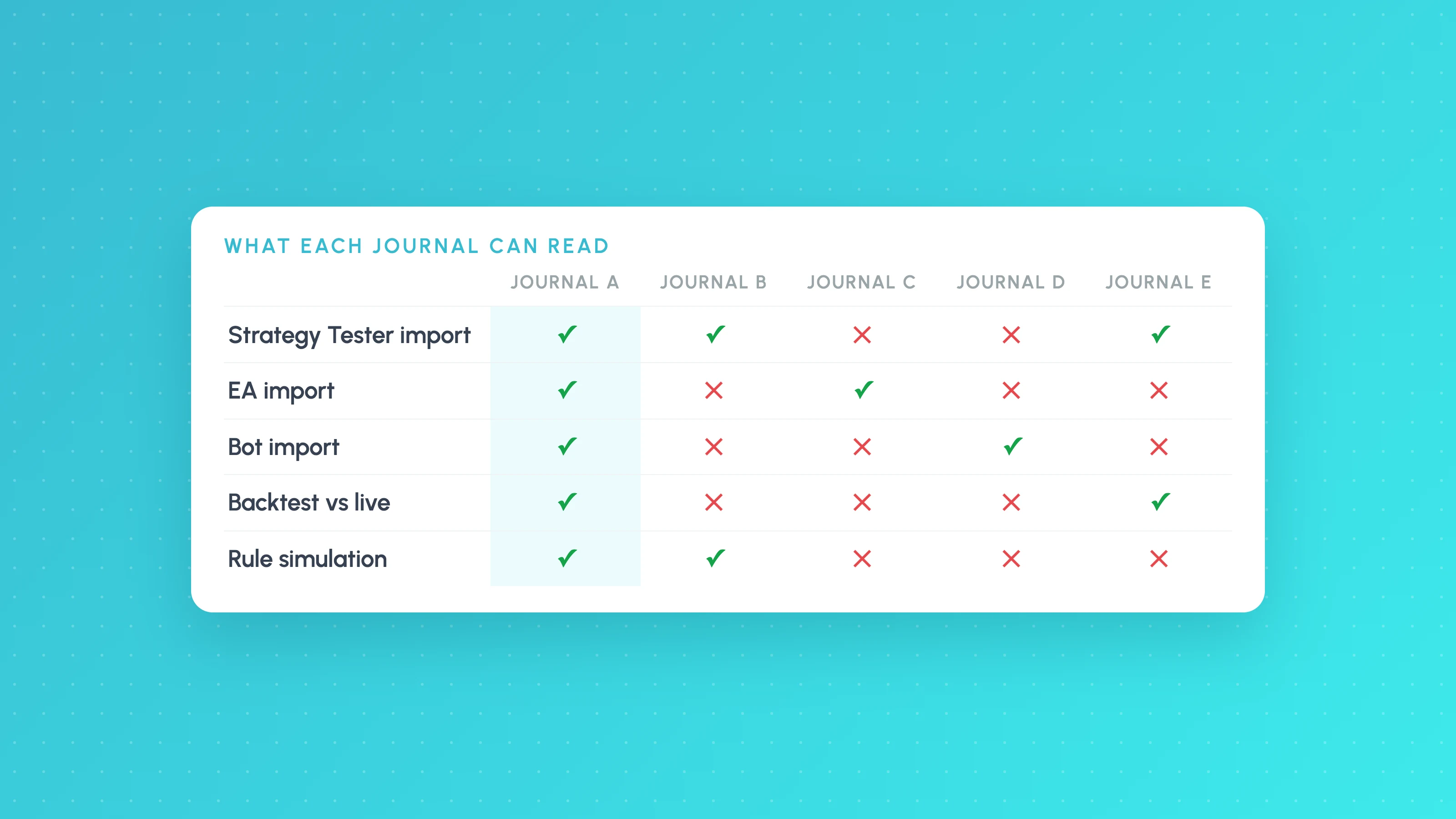
If the strategy also trades live, compare the live fills with the backtest over the same period. Our guide on why a strategy works in backtest but not live walks through the trade-by-trade comparison. For journals aimed at bots, EAs and backtests across platforms, see the best trading journal for algo traders.
Free options
- A spreadsheet. Free, works with every TradingView export, and fully transparent.
- TradingView Portfolios. Imports paper-trading fills into a portfolio view, per TradingView's blog. Useful for an overall performance view, less so for trade review.
- Tradervue free plan. Its help page says free users can import 30 trades per calendar month, counted after executions are grouped into trades.
- TradesViz free account. The extension syncs stocks only on a free account, per its extension guide.
- Tessera free Entry Analysis report. Upload a Strategy Tester export, paper trading history or any other supported file at /free-demo for a report by market condition, with no card. Tessera also has a Free plan, and paid plans start at $39 a month.
Free tiers change often, so check each vendor's pricing page before relying on a limit.
If you would rather start from a template, the simplest TradingView journal spreadsheet has one row per closed trade with these columns: date and time opened, date and time closed, symbol, side, quantity, entry price, exit price, fees, P/L, and a tag for the setup or strategy version. Paste the Strategy Tester "List of trades" export straight into those columns. Once the sheet has more than a few dozen trades, any spreadsheet can be imported into Tessera with Custom CSV and broken down by session and weekday in the algo trading journal.
How to choose
- Decide which of the three data types you actually need to journal. Most traders need one or two, not all three.
- For live trades, start from your broker: pick a journal that syncs with it directly, so trades placed outside TradingView are included too.
- For paper trades, check that the journal documents the TradingView paper export, and do a test upload with all columns enabled before committing.
- For Strategy Tester results, check that the journal reads the file you can produce (CSV trade list or XLSX report) and that it can keep backtest trades separate from real ones.
- Look at what the journal does with the data. Tags and notes suit discretionary review; breakdowns by condition and rule testing suit systematic strategies.
Switching from another journal?
If you already use a journal and it does not read your TradingView data the way you need, these comparisons cover the main options: TradeZella alternatives, TraderSync alternatives and Edgewonk alternatives. For how to get each TradingView file out cleanly, see how to export TradingView Strategy Tester results.
Frequently asked questions
- Does TradingView have a built-in trading journal?
- No. TradingView keeps order history in its trading panel, can import paper trades into Portfolios, and lists strategy trades in the Strategy Tester, but it has no dedicated journal with tags, notes and trade review. Most traders export a CSV from TradingView and import it into a separate journal or a spreadsheet.
- What trading journal connects to TradingView?
- Of the journals checked here, TradesViz has the broadest coverage as of October 2026: a browser extension that reads paper and real fills from TradingView's History tab, CSV upload, and an import for Strategy Tester XLSX reports. TradeZella and Edgewonk document imports of TradingView paper trades, and Tessera imports Strategy Tester trade lists and paper Order History CSVs. For live trades, connecting the journal to your broker is usually more complete than going through TradingView.
- Can I import TradingView Strategy Tester results into a trading journal?
- Yes, with some journals. TradesViz accepts the strategy report XLSX export, and Tessera accepts the List of Trades CSV and analyses it by session, weekday, time and volatility. TradeZella's and Edgewonk's TradingView documentation covers only paper or order history exports, so check with them before relying on a backtest import.
- Is there a free trading journal that works with TradingView?
- A spreadsheet works with every TradingView export at no cost. Tradervue's free plan allows 30 imported trades per month, TradesViz's free account syncs stocks through its extension, and TradingView Portfolios can import paper trades. Tessera offers a free one-off report from a Strategy Tester export without a card, and a Free plan whose trade log keeps the last 30 days of trades for one broker account.
- Should I journal paper trades and backtest trades together with live trades?
- Keep them separate. Paper and backtest fills are simulated, so mixing them with live trades distorts win rate, average trade and drawdown. Use separate accounts or workspaces in your journal and compare them side by side instead.
Keep reading
 TradingView backtests
How to Export TradingView Strategy Tester Results (2026)
Export TradingView Strategy Tester results as CSV or XLSX: where the download buttons are, which plan you need, the 9,000 trade limit and what columns mean.
 TradingView backtests
How to Analyse a TradingView Backtest by Session, Weekday and Hour
Analyse a TradingView backtest beyond the summary: split trades by session, weekday, hour, volatility and direction, check sample sizes, then test the rule.
 Trading journals
Best Trading Journal for Algo Traders (2026): Which Ones Read Your Backtests, Bots and EAs
The best trading journal for algo traders imports your backtests, EAs and bot trades. We compare 7 on imports, rule testing and price (Oct 2026).